
Mobile app · Watchlists
Watchlist view modes, sorting and filters in Stock Master
Switch a Stock Master watchlist between quote, chart, card, heat map and visual map views, sort by change, after-hours move or return, and filter the list.
On this page
The same watchlist can answer different questions depending on how you look at it. A plain quote list is best for prices; a heat map shows at a glance what is moving; a chart view shows each stock's trend; sorting by after-hours change surfaces the earnings movers at 5 p.m. Stock Master gives every list nine view modes and sixteen sort orders, all one tap from the bottom toolbar.
This guide explains each view mode, the sort options, the filter, and how to make the app remember your choices.
View modes and sort orders
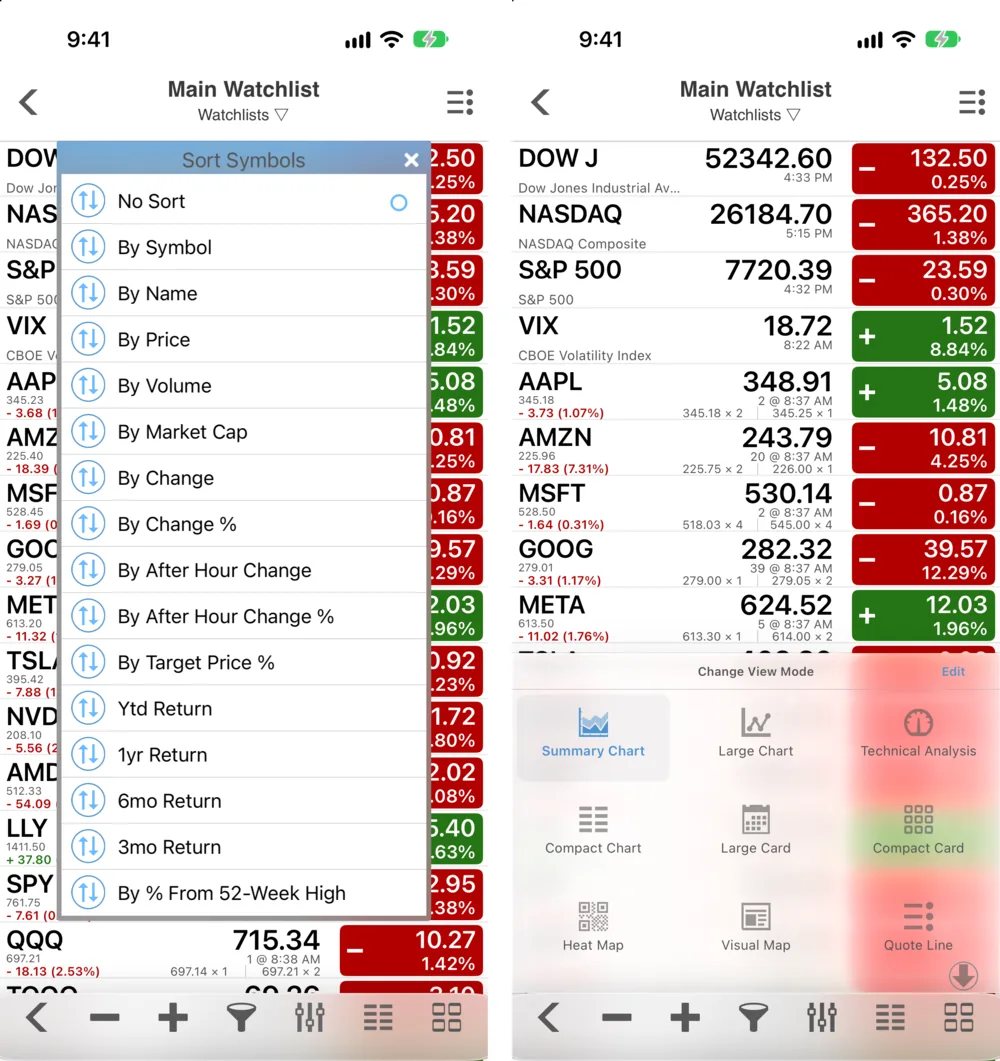
The bottom toolbar of a watchlist, left to right: back, − (remove symbols), + (add a symbol), the filter, the sort button, the view mode button, and the shortcut panel.
The nine view modes
| Mode | Best for |
|---|---|
| Quote Line | The classic list: price, change box, bid/ask and extended-hours price. Most symbols per screen. |
| Summary Chart | Each symbol with a small chart beside its quote. |
| Large Chart | A full-width chart per symbol — scroll through a list of charts. |
| Compact Chart | Smaller charts, more symbols per screen. |
| Technical Analysis | Each symbol with technical-analysis readings. |
| Large Card | A large card per symbol. |
| Compact Card | Smaller cards in a grid. |
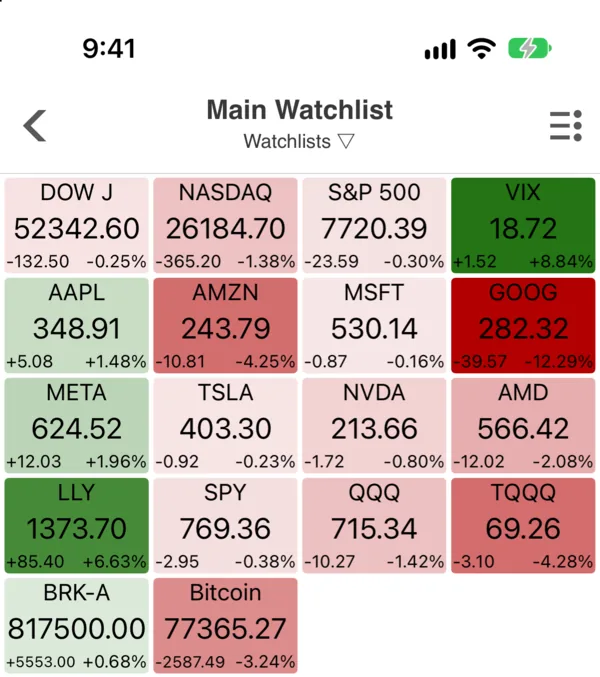
| Heat Map | Tiles colored by today's move — see the whole list at once. |
| Visual Map | A map-style layout of the list, like the Market Map. |
In the chart modes, the chart range for the list (1d, 5d, 1y…) is set with Change Chart Range in the ≡ Actions menu. Expand All / Collapse All Symbols opens or closes the detail rows in one step.
Use Customize View Mode (≡ Actions menu, or Edit on the view-mode panel) to hide the modes you never use and keep the panel short. Reset to Default brings them all back.
The sixteen sort orders
No Sort, By Symbol, By Name, By Price, By Volume, By Market Cap, By Change, By Change %, By After Hour Change, By After Hour Change %, By Target Price % (the distance to the analysts' one-year target), Ytd Return, 1yr Return, 6mo Return, 3mo Return and By % From 52-Week High.
Tap an order to apply it; tap it again to flip between ascending and descending. A few that earn their place:
- By Change % — today's leaders and laggards, regardless of share price.
- By After Hour Change % — the right sort at 4:05 p.m. on an earnings night.
- By % From 52-Week High — which holdings are closest to a breakout, and which are deep in a drawdown (52-week high and low).
- By Target Price % — where analysts see the most upside or downside. Targets are opinions and lag big moves.
No Sort restores the order you set by dragging.
Filter a long list
Tap the filter (funnel) button to show a search bar above the list, then type part of a symbol or company name. The list narrows as you type; clear the box to see everything again. It is the fastest way to find one name in an 80-symbol list.
Make choices stick
Two settings change how lists remember things:
- Settings › Stock Settings › Watchlist Sorting Persistent keeps your sort order when you leave and come back.
- Settings › Chart Range Preference sets the chart range used in watchlist lists and detail views, and Watchlist Chart Range Persistent keeps it.
Frequently asked questions
How do I sort my watchlist by biggest gainers?
Tap the sort button and choose By Change %. Tap it again if the losers are on top.
Can I see my watchlist as a heat map?
Yes. Tap the view mode button and choose Heat Map, or Visual Map for a map-style layout.
How do I go back to my own order?
Choose No Sort. Your drag-and-drop order was kept.
Why does my sort reset when I leave the list?
Turn on Watchlist Sorting Persistent in Settings › Stock Settings.
Summary
Pick a view mode to match the question — quotes, charts, cards or a heat map — and a sort order to bring the right names to the top, from today's percent change to the distance from the 52-week high. Use the filter for long lists, and the two persistence settings if you want the app to remember.