
Mobile app · Getting started
Getting started with Stock Master on iPhone
Install Stock Master, find your way around the Home screen and side menu, and learn what works free and what needs an account or a plan.
On this page
Stock Master is Finabase's iPhone app for following the markets: live quotes, watchlists, interactive charts with more than a hundred studies and candlestick patterns, price and indicator alerts, portfolios, screeners and market news. It has been on the App Store for more than ten years, and the same account works on the web at finabase.io.
This guide covers the first ten minutes: installing the app, reading the Home screen, finding everything else in the side menu, and deciding whether you need to sign in. Each area of the app has its own guide in this section, linked at the end.
Install the app
Search the App Store for Stock Master and install it. The same app runs on iPhone and iPad. On first launch iOS may ask whether the app can send notifications. You can say no for now: the app asks again when you save your first alert, which is the only feature that needs notifications.
You do not need an account to start. The app comes with three starter watchlists, so the Home screen has live data from the first second: Main Watchlist (the Dow, Nasdaq, S&P 500 and VIX, plus well-known names such as Apple, Microsoft, Nvidia, the SPY and QQQ funds and bitcoin), Dow Jones Components and Berkshire Hathaway (a selection of the holdings of Warren Buffett's company). Edit them freely; only the first list cannot be deleted.
The Home screen
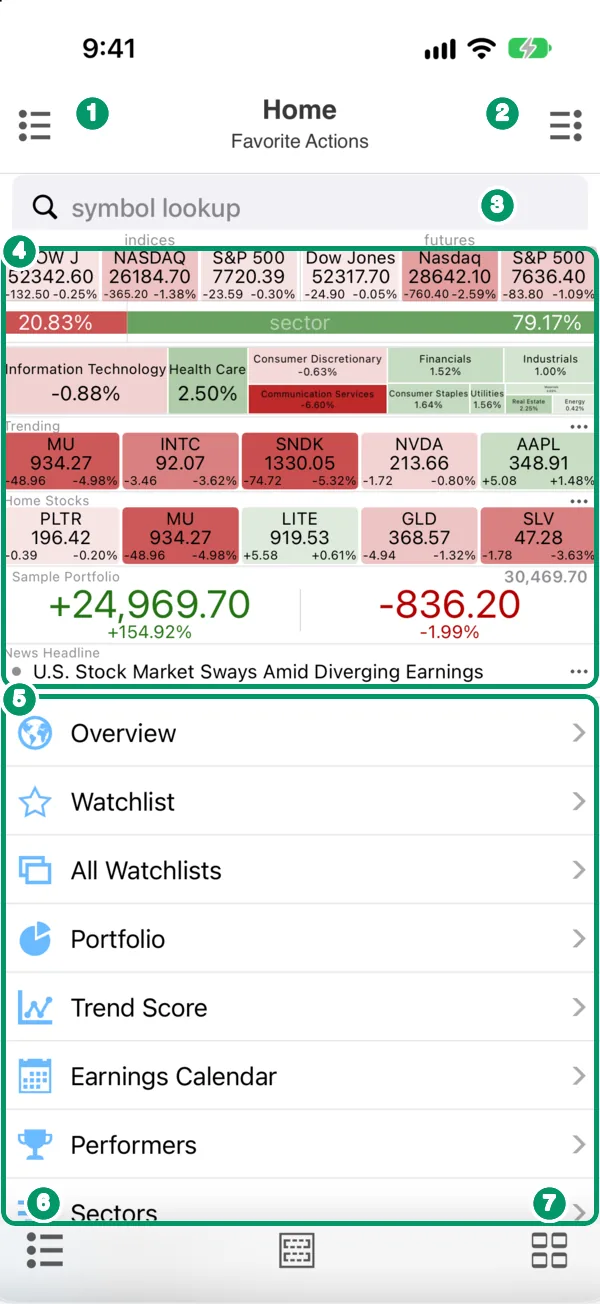
Home is titled Home with the subtitle Favorite Actions. From top to bottom:
- Side menu icon (top left). Opens the drawer with every screen in the app.
- Actions menu (≡, top right). The commands for the current screen. On Home that is adding, editing and resetting your favorite actions.
- symbol lookup. Type a ticker or a company name; results fill in as you type. Tap a result to open its quote.
- Home widgets. By default: the major US indices and index futures, a sector overview bar (the share of the market up versus down today), a sector map, the Trending stocks, your Home Stocks (up to five symbols you pick), your first portfolio and the top News Headline. Every tile is tappable.
- Favorite Actions. Shortcuts to the screens you use most — Overview, Watchlist, All Watchlists, Portfolio, Trend Score, Earnings Calendar, Performers, Sectors and more.
- The bottom toolbar repeats the side menu button on the left.
- The grid icon at the bottom right opens a shortcut panel with your favorite actions, so you can jump between screens without going back to Home.
You can change all of this — which widgets appear, their order and which favorite actions are listed. See Customize the Stock Master Home screen and favorite actions.
The side menu
The side menu is the map of the app. Its sections are:
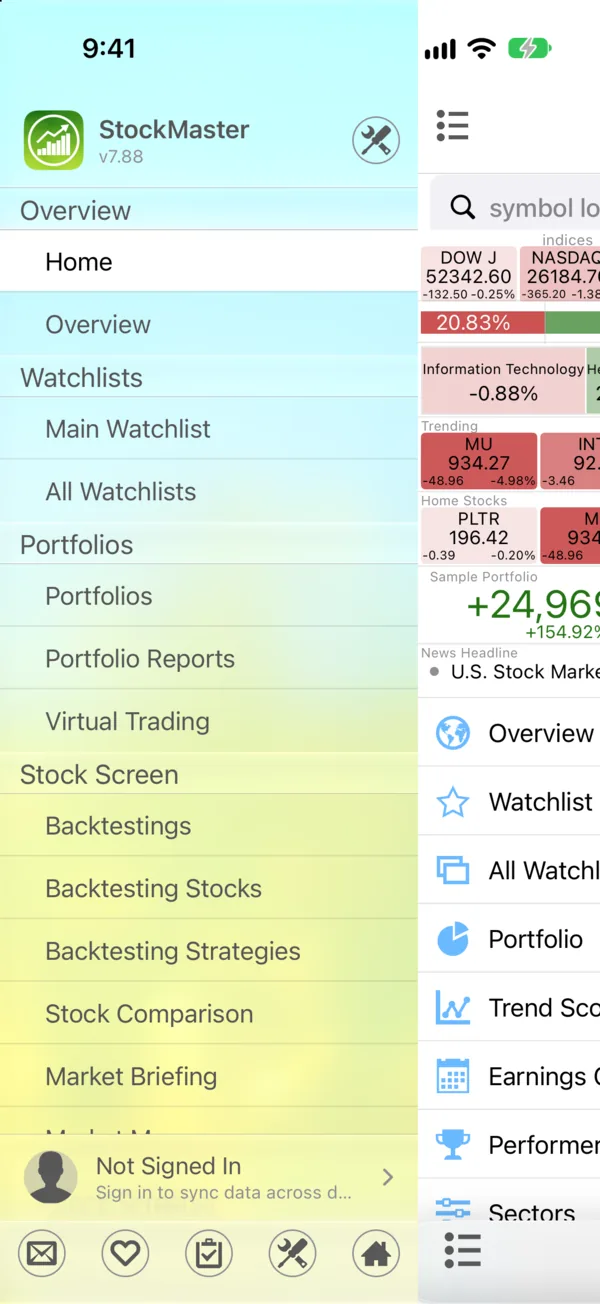
| Section | What is in it |
|---|---|
| Overview | Home and the Market Overview screen |
| Watchlists | Your first watchlist and All Watchlists |
| Portfolios | Portfolios, Portfolio Reports and Virtual Trading |
| Stock Screen | Backtesting, Stock Comparison, Market Briefing, Market Movers, the Stock Screener, market and user stock scans, the Earnings Calendar and Upcoming Events |
| Stock Market | Trending Stocks, news groups, World Markets, futures, commodities, forex, U.S. Treasury yields, the Consumer Price Index, trading hours and crypto |
| My Stuff | Stock Options, Stock Alerts, Notification History, chart settings, notes and your recently viewed symbols |
| Miscellaneous | Knowledge Center, Go Unlimited (plans), Feature Request, Share with Your Friends and Settings |
At the top of the drawer you see your account: Not Signed In until you sign in, with a reminder that signing in syncs your data across devices.
Do you need an account?
Most of the app works signed out. Watchlists, quotes, charts, the screener and even alerts work without an account; alerts are tied to the device, so they keep working signed out.
Signing in (with Apple, Google or an email address) adds three things:
- Sync and backup. Watchlists, portfolios, alerts and settings follow you to a new phone, an iPad and finabase.io. Signed out, deleting the app deletes your data.
- AI features. AI analysis of a stock, a watchlist or a portfolio, and the Market Briefing.
- Virtual trading, the practice account.
See Sign in, sync across devices and back up Stock Master for the details.
Free and paid
The free version shows ads and limits you to three watchlists (80 symbols each), three portfolios, five Home Stocks and the standard chart ranges. A plan removes ads and those limits and unlocks intraday chart ranges; the Plus and Premium plans also stream real-time exchange prices. Stock Master plans: Essentials, Plus and Premium compared compares them.
Where to go next
- Build your lists: Create and manage watchlists in Stock Master.
- Read a quote: The Stock Master quote screen, field by field.
- Chart it: Interactive charts in Stock Master: ranges, types and zoom.
- Get notified: Set price, percent and indicator alerts in Stock Master.
- Track what you own: Track a portfolio in Stock Master: transactions, gains and reports.
Frequently asked questions
Is Stock Master the same as Finabase?
Yes. Stock Master is the iPhone and iPad app, and finabase.io is the web app. They share the same market data and, when you sign in, the same watchlists and portfolios.
Is Stock Master free?
Yes, with ads and some limits. Quotes, charts, alerts, screeners and news are free; plans remove ads, lift the watchlist and portfolio limits and add intraday charts and real-time prices.
Can I use it on an iPad?
Yes. The iPad version shows a list and a detail screen side by side; everything in these guides applies to it.
Why are some prices red and some green?
Green means the price is above the previous close, red below. You can swap the two colors in Settings, which some markets (for example mainland China) use the other way round.
Summary
Stock Master opens on a Home screen of live market widgets and your favorite shortcuts; the side menu lists everything else, and the ≡ icon holds each screen's actions. You can start without an account and sign in later to sync. The guides in this section walk through each feature in the order most people need them.