
Mobile app · Quotes
Real-time and extended-hours prices in Stock Master
How Stock Master updates prices, what bid, ask and size show, where pre-market and after-hours prices appear, and what real-time exchange data adds.
On this page
A stock's price changes many times a second while the market is open, and it keeps trading, more thinly, for hours before the open and after the close. Stock Master shows both: the regular-session price in large type and, outside the session, a separate pre-market or after-hours price. How quickly those prices reach your phone depends on the data you have.
This guide explains the price line on a quote, where extended-hours prices appear, how streaming and refreshes work, and what the Exchange Realtime Data in the Plus and Premium plans changes.
Reading the price line
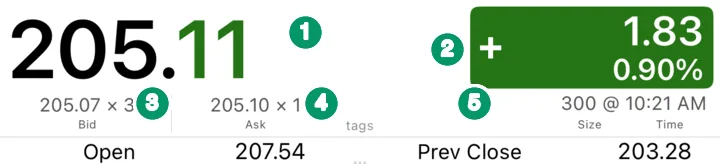
- Last price. The most recent trade in the regular session. Changed digits are colored so you can see what just moved.
- Change. The difference from the previous session's close, in dollars and percent. It is the same number in every list, widget and alert, which is why a stock can be "up" at 7 p.m. on a day it closed down — see below.
- Bid × size. The highest price a buyer is currently offering and the number of shares (or round lots, depending on the feed) at that price.
- Ask × size. The lowest price a seller will accept and its size.
- Size @ time. The size of the last trade and when it printed.
The gap between bid and ask is the bid-ask spread. A cent or two on a large, busy stock; much wider on a thinly traded one, and wider still outside regular hours.
Pre-market and after-hours prices
US stocks trade in three sessions (Eastern Time): pre-market from 4:00 a.m. to 9:30 a.m., the regular session from 9:30 a.m. to 4:00 p.m., and after hours from 4:00 p.m. to 8:00 p.m. The app's Trading Hours / Holidays screen in the side menu lists these hours and the exchange holidays. The background is in Stock market hours: regular, pre-market, after-hours and overnight.
Stock Master keeps the regular-session close as the headline price and shows extended trading separately:
- On the quote screen, outside the regular session, the last-trade size and time are replaced by the extended-hours price and its change and percent change from the regular close, colored green or red.
- In watchlists, the extended-hours price and change appear under the regular price.
- You can sort a watchlist By After Hour Change or By After Hour Change % to see what is moving on earnings news after the bell.
- Trending Stocks has Regular, Premarket and After Hour tabs.
- In Settings, Portfolio Update with Extended Trading decides whether portfolio values use extended-hours prices.
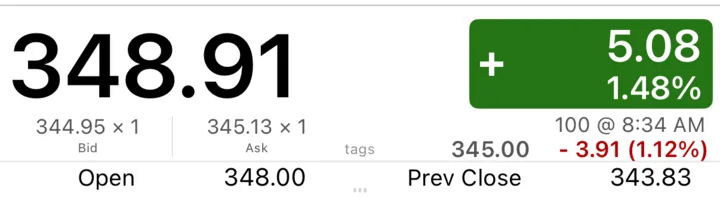
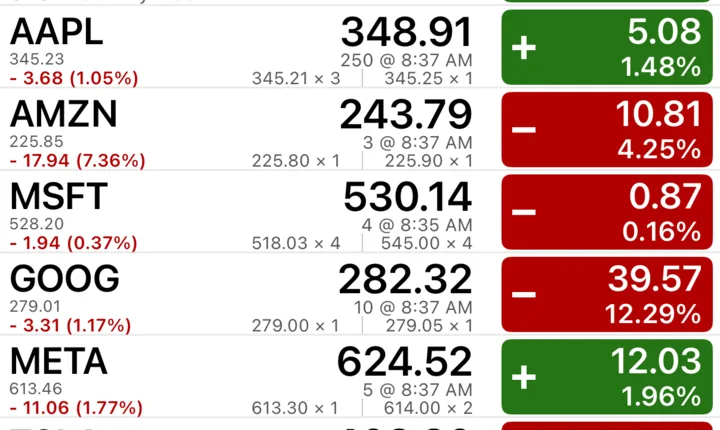
Extended-hours prices deserve caution. Volume is a small fraction of the regular session's, so a few trades can move the price far, and spreads widen. A 5% after-hours jump on an earnings release often narrows, or reverses, by the next morning's open.
How prices update
You do not need to pull to refresh. While a quote, watchlist or widget is on screen, the app holds a streaming connection and merges each new trade into the price as it arrives. In the background it also re-loads full quotes on a timer — about every 90 seconds for high-priority quotes and about every three minutes for the rest. Refresh Data in a screen's ≡ Actions menu forces an immediate reload.
Real-time exchange data
Every user gets streaming prices, but the source differs:
| Data | Who gets it |
|---|---|
| Standard feed | Free and Essentials users. Updates continuously but can lag the exchange. |
| Exchange Realtime Data | Plus and Premium plans, or the Premium Data add-on. |
If you trade on short time frames — or watch the open and close closely — real-time exchange data makes the bid, ask and last trade match what your broker shows. For end-of-day investors the standard feed is usually enough. Stock Master plans: Essentials, Plus and Premium compared compares the plans.
Frequently asked questions
Why does my stock show a gain after the close when it closed down?
The large price and change are for the regular session. The smaller extended-hours price below them is a separate number, measured from the regular close. Both can be true: down 2% for the day, up 3% after hours.
Are Stock Master prices real time?
With a Plus or Premium plan, or the Premium Data add-on, prices come from the real-time exchange feed. Without one, prices still stream but can lag the exchange.
Does Stock Master show pre-market prices?
Yes, from 4:00 a.m. ET, on the quote screen and in watchlists, and Trending Stocks has a Premarket tab.
What do the numbers after "×" mean?
They are sizes: how many shares are bid or offered at that price. A large size on the bid means plenty of demand at that level.
Summary
The big number is the regular-session price; outside 9:30–4:00 ET the extended-hours price and change appear beside it. Bid and ask with their sizes show the market's current quotes, and prices stream to whatever is on screen. Real-time exchange data comes with the Plus and Premium plans or the Premium Data add-on.