
Mobile app · Discover
Market map and sector performance in Stock Master
Use the Stock Master market map (heatmap) to see the S&P 500, S&P 100 or Dow at a glance, and read sector breadth and performance on the Sector Summary.
On a busy day the question is not only "is the market up?" but "what is moving it?" A market map answers that in one picture: every stock in an index is a tile, sized by its market value and colored by its move, grouped by sector and industry. Stock Master's Market Map draws the S&P 500, the S&P 100 or the Dow this way over any range from one day to two years, and the Sector Summary turns the same data into ranked bars.
This guide explains how to open both screens, how to read them, and what they can and can't tell you.
Open them
- Market Map: tap the small sector map on the Home screen. You can also add Market Map as a favorite action (see Customize the Stock Master Home screen and favorite actions), and the Stock Map iPhone widget opens it.
- Sector Summary: tap the green/red sector bar on Home, or the Sectors favorite action.
The two screens
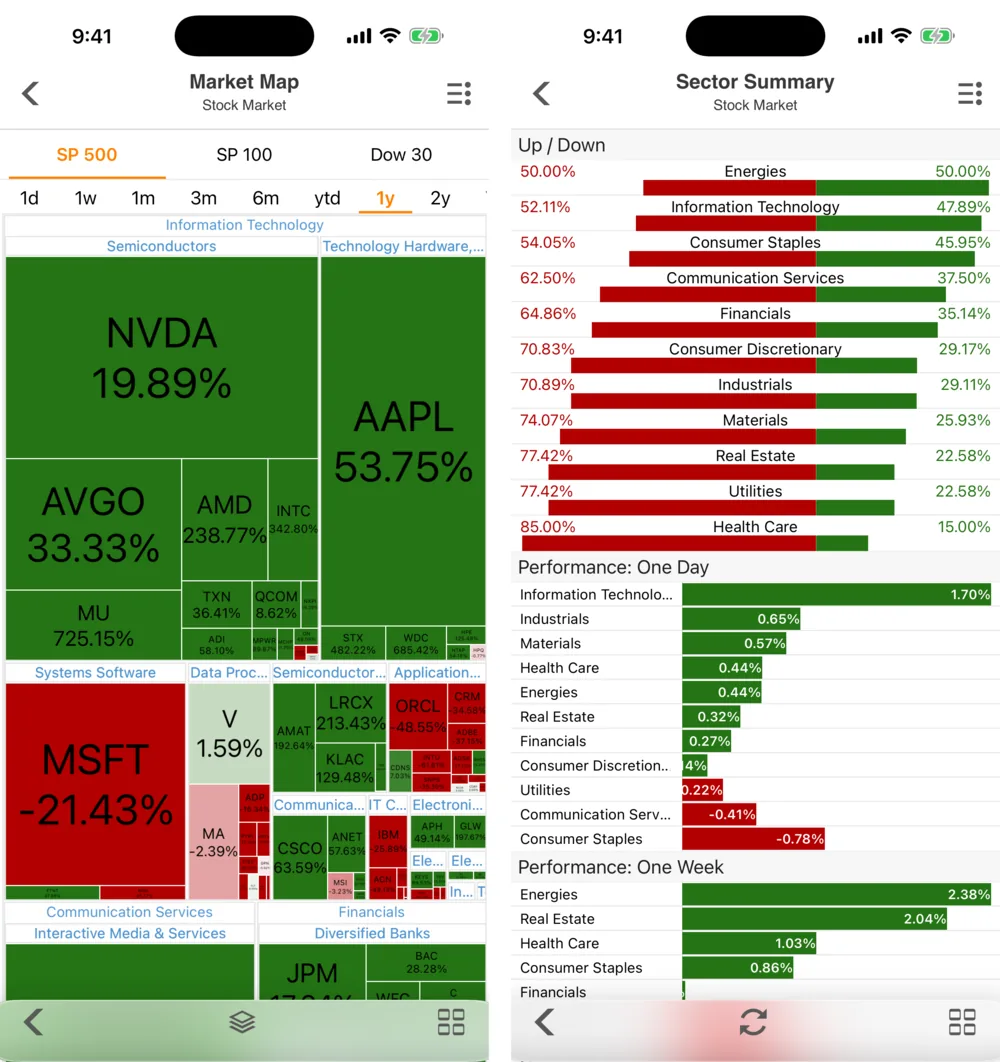
Market Map
The map is titled Market Map (subtitle Stock Market). Across the top:
- Index tabs: SP 500, SP 100 and Dow 30.
- Ranges: 1d, 1w, 1m, 3m, 6m, ytd, 1y, 2y.
Below, each sector (Information Technology, Financials, …) is a block, split into industries (Semiconductors, Systems Software, …), split into companies. A tile's area is the company's market capitalization, so Nvidia, Apple and Microsoft dominate the Information Technology block. Its color is the price change over the range — green up, red down, and pale near zero — and the percentage is printed on any tile big enough to hold it. In the picture, over one year, NVDA was up 19.89% and AAPL 53.75% while MSFT was down 21.43%.
Tap a tile to open that stock's quote. The ≡ Actions menu has Increase Map Size and Decrease Map Size, which make the map larger than the screen so small companies get readable tiles (scroll to move around), and Toggle SP & Dow / Watchlist, which draws your watchlist as a map instead of an index.
Sector Summary
The Sector Summary ranks the eleven sectors three ways:
- Up / Down — breadth. For each sector, the red bar is the share of its stocks that fell and the green bar the share that rose. "Energies 50.00% / 50.00%" means half up and half down.
- Performance: One Day — each sector's average move today, best first.
- Performance: One Week — the same over five trading days.
How to read them
A few habits get the most out of the map:
- Look at area before color. If the biggest tiles are green and most small tiles are red, the index is being held up by a handful of mega-caps. The index can rise while the typical stock falls.
- Check breadth. The Sector Summary's Up / Down bars, and the green/red sector bar on Home, show participation. A rally where 80% of stocks rise is broader, and usually sturdier, than one where 40% do.
- Change the range. One day shows the news; one year shows the trend. A sector that is red today but deep green over a year is pulling back within an uptrend.
- Compare industries inside a sector. Semiconductors and software are both "technology", but they often move in opposite directions.
For the background on sectors and the GICS system, see Stock market sectors and industries: GICS and sector ETFs explained; for what market capitalization measures, see Market capitalization: formula, free float and enterprise value.
Limits
The map is a snapshot of price change, nothing more. It doesn't show valuation, volume or news. Very small tiles are hard to read until you enlarge the map, and a large move in a small company is easy to miss. Over long ranges, a company that joined the index recently appears with its full-range move even if it wasn't in the index for all of it.
Frequently asked questions
Is the Market Map the same as a stock heatmap?
Yes. "Heatmap" and "market map" mean the same thing: tiles sized by market value and colored by performance.
Can I see my own watchlist as a map?
Yes. Open the ≡ Actions menu on the Market Map and tap Toggle SP & Dow / Watchlist. A watchlist can also use the Heat Map or Visual Map view mode; see Watchlist view modes, sorting and filters in Stock Master.
Why is one company's tile so much bigger than the others?
Tiles are proportional to market capitalization. In 2026 a handful of technology companies are each worth several trillion dollars, many times the size of a typical S&P 500 member.
Can I put the map on my iPhone home screen?
Yes. Add the Stock Map widget from the iPhone home screen's widget gallery; it shows the Dow, S&P 500, S&P 100 and more.
Summary
The Market Map shows an index as tiles sized by market cap and colored by return, by sector and industry, over any range from a day to two years; the Sector Summary ranks sectors by breadth and by one-day and one-week performance. Read size and color together to see whether a move is broad or carried by a few giants.