
Mobile app · Account and subscription
Sign in, sync across devices and back up Stock Master
Sign in to Stock Master with Apple, Google or email, sync watchlists and portfolios to other devices and finabase.io, make a backup file, and delete your account.
On this page
Stock Master works without an account, and many people use it that way for years. The catch is that everything then lives on one phone: replace the phone or delete the app and the watchlists, portfolios and alerts go with it. Signing in fixes that — your data syncs to Finabase's servers and appears on every iPhone, iPad and browser where you sign in. A backup file is a second, offline safety net.
This guide covers signing in, what syncs, backups and restores, and how to sign out or delete your account.
Sign in
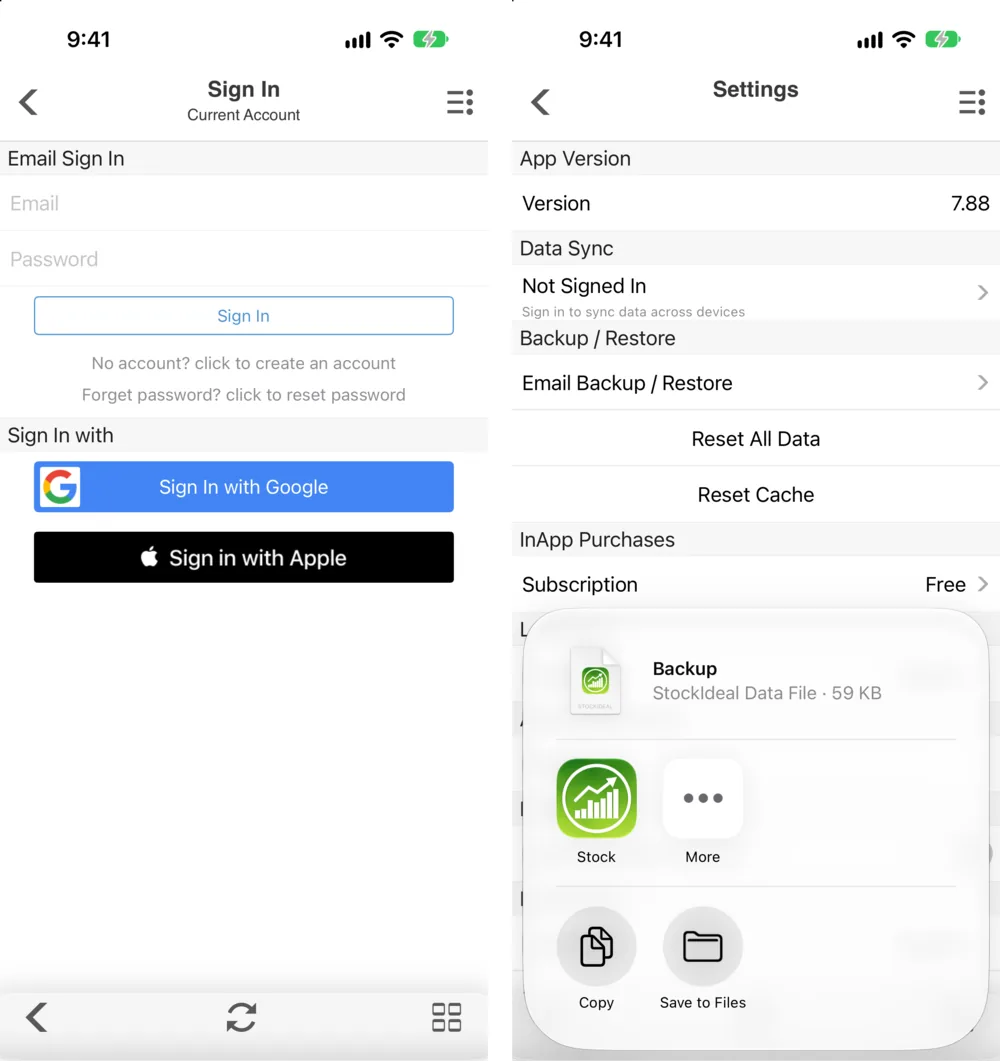
Open Settings and tap the Not Signed In row under Data Sync (or tap Not Signed In at the bottom of the side menu). The Sign In screen offers:
- Sign In with Google and Sign in with Apple — one tap, using an account you already have. With Apple you may choose to hide your email address.
- Email Sign In — an Email and Password. New users tap No account? click to create an account; Forget password? click to reset password sends a reset email.
Use the same method on every device, so they all land in the same account. Signing in with Apple on the iPhone and Google on the web creates two separate accounts.
What syncs
Once you are signed in, the app syncs:
- Watchlists and their order.
- Portfolios and all their transactions.
- Alerts — signed-in alerts follow you to a new device.
- Settings, chart settings and screens.
The first sign-in merges what is already on the phone into your account, so you don't lose lists you built while signed out. The same account signs you in on finabase.io; the paid plans list Data Sync Across Web, iOS, and Android among their features (Stock Master plans: Essentials, Plus and Premium compared). Settings › Data Sync shows the account in use and the Last Sync Date, and lets you Force sync data with server if something looks out of date.
Back up and restore
Settings › Backup / Restore › Email Backup / Restore packs your data into a single
StockIdeal Data File (.stockideal, typically tens of kilobytes) and opens the iPhone share
sheet: mail it to yourself, Save to Files, or AirDrop it. To restore, open the file on the
phone — from Mail or Files — and choose Stock Master; the app asks before replacing its data.
The backup holds your watchlists, portfolios and settings. A few things kept in the app's local database, such as saved trading strategies, symbol categories and custom currency rates, aren't in it, so signing in remains the more complete safety net.
Signed out: what to know
- Data lives only on the phone. Deleting the app deletes it.
- Alerts are tied to this installation of the app. Delete and reinstall, and they are gone.
- AI features, virtual trading and subscribing to a plan need an account.
Sign out and delete your account
Tap your account in Settings › Data Sync (or in the side menu) to open your profile. It has Sign Out and Edit Profile buttons. To delete the account, open the profile's ≡ menu and choose Sign out and delete account. The app asks you to confirm — "Are you sure to sign out and delete your account and all related data?" — and then removes the account and its synced data.
Deleting your account does not cancel an App Store subscription. Cancel that in the iPhone's Settings › Apple Account › Subscriptions first (Stock Master plans: Essentials, Plus and Premium compared).
Frequently asked questions
Do I need an account to use Stock Master?
No. Quotes, watchlists, charts, alerts and the screener work signed out. An account adds sync, backup on the server, AI features and virtual trading.
How do I move my watchlists to a new iPhone?
Sign in on the old phone, wait for the sync, then sign in with the same method on the new phone. Or make a backup file on the old phone and open it on the new one.
Will signing in erase what I already have?
No. The first sign-in merges the data on the phone into your account.
How do I delete my Stock Master account?
Open your profile from Settings › Data Sync, tap the ≡ menu and choose Sign out and delete account, then confirm. Cancel any App Store subscription separately.
Summary
Sign in with Apple, Google or email to sync watchlists, portfolios, alerts and settings across your devices and finabase.io; make a backup file as an extra copy. Signed out, the data lives on one phone only. Delete your account from the profile's ≡ menu, after cancelling any subscription.