
Mobile app · Charts
Interactive charts in Stock Master: ranges, types and zoom
Open the full-screen chart in Stock Master, switch ranges and chart types, zoom and scroll, replay price history, turn to landscape and save chart setups.
On this page
Every quote in Stock Master has a chart, and every chart opens into a full-screen interactive view: candles or lines over ten standard ranges, intraday bars down to one minute, more than a hundred studies, drawing tools and a replay mode that plays history back bar by bar. The chart engine is Stock Master's own, built for the phone, and the same settings drive the small charts in your watchlists.
This guide covers getting around the chart. Adding studies is in Add indicators and candlestick patterns to Stock Master charts.
The full-screen chart
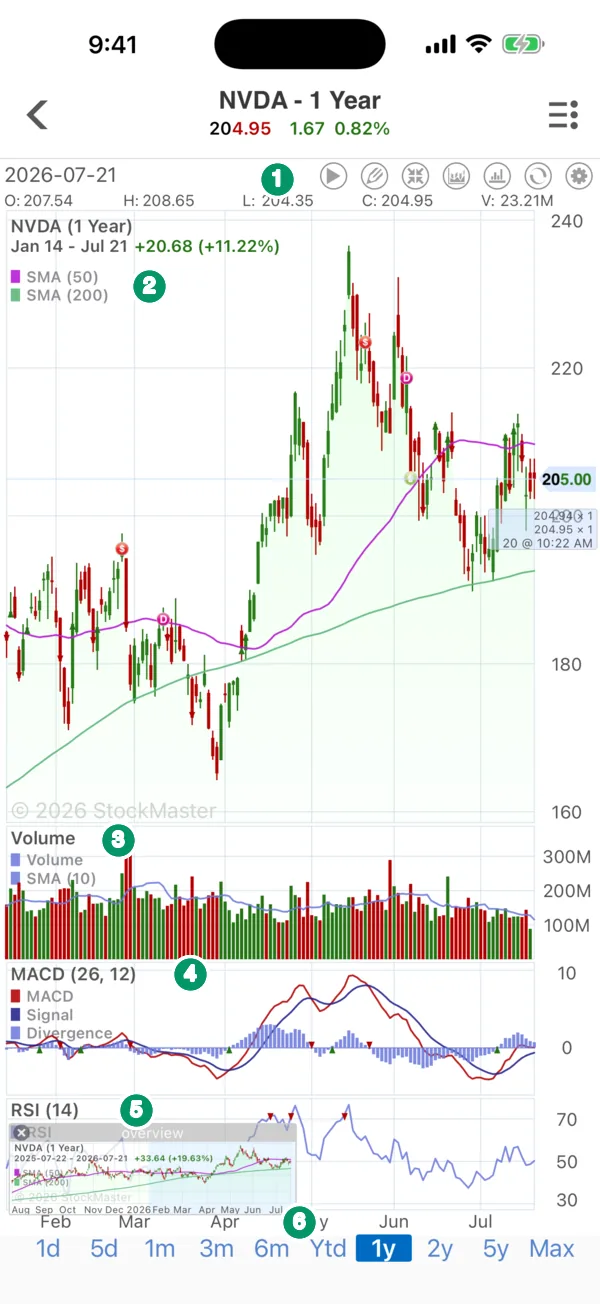
- Chart buttons. A row of round buttons for replay, drawing, zoom, applying a saved chart setting, the advanced (intraday) chart, rotation and chart settings. The same commands are in the ≡ Actions menu: Replay Chart, Draw Shape, View Chart Image, Zoom Chart, Apply User Chart, Advanced Chart, Rotate Chart and Chart Settings. Above the buttons, the date and the O / H / L / C / V values of the bar under your finger.
- Price pane. Candles with any overlays, here the 50- and 200-day simple moving averages. The legend lists each study with its settings. Small lettered markers flag events such as earnings and dividends.
- Volume with its 10-day average.
- MACD (26, 12) — an indicator pane.
- RSI (14) — another indicator pane.
- Ranges. Tap to change the time span.
The header shows the symbol, the range, the last price and the change over the range.
Ranges and intervals
The standard ranges are 1d, 5d, 1m, 3m, 6m, Ytd, 1y, 2y, 5y and Max. Each picks a sensible bar size for its span: one-day charts use intraday bars, multi-year charts weekly or monthly ones. Crypto charts have no Max.
The advanced chart lets you choose the bar size instead: 1m, 5m, 15m, 30m, 1h, 1d or 1w. It is for traders who need, say, five-minute candles over several days, and it is available with a plan. If intraday data isn't available for a symbol, the app tells you and switches back to the regular chart.
Chart types and scale
Open Chart Settings (the gear, or ≡ › Chart Settings). Under General:
- Line Type — Line (closes joined up), Candles, OHLC bars or Heikin Ashi, a smoothed candle that makes trends easier to see. If candles are new to you, start with How to read candlestick charts: a guide with real data.
- Chart Scale — Linear, or Log, where equal distances are equal percentage moves. Use log for long ranges, where a stock went from $10 to $200.
- Ordinate Axis — Price, or Percentage change from the start of the range, useful when comparing symbols.
- Comparison — overlay another symbol, such as the S&P 500, on the price pane.
- Show Volume and Volume SMA, plus background, area and up/down colors.
Zoom, scroll and read values
- Pinch to zoom in on part of the range; drag to scroll through time. Zoom Chart turns automatic zooming on or off.
- Touch and hold a bar to select it. The header then shows that bar's date, open, high, low, close and volume, and each study's value.
- The small overview chart in the corner shows where your zoomed window sits in the whole range. Tap its ✕ to hide it.
Replay
Replay Chart hides the bars to the right of a starting point and plays them back one at a time, with play/stop, previous and next buttons and sliders for replay speed and replay progress. It is a way to practice reading a chart without knowing what happens next. Pause at a pattern, decide what you expect, then step forward.
Drawing tools
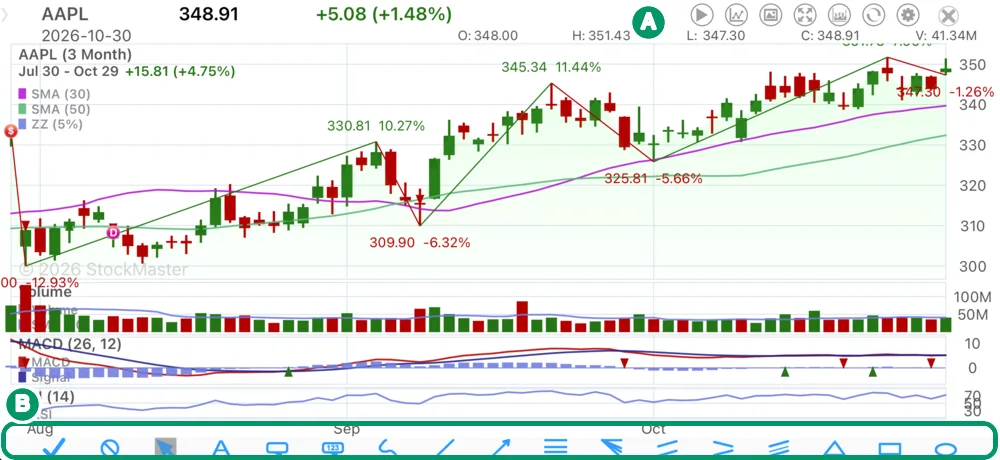
Tap the pencil (or ≡ › Draw Shape) and a toolbar of shapes appears along the bottom of the chart. Left to right: done (✓), hide drawings, the select arrow for moving and editing a shape, then the shapes themselves — text, callout text, value text (a price label), freehand sketch, line, arrow, Fibonacci retracement, Fibonacci fan, parallel channel, disjoint angle, regression trend, triangle, rectangle and ellipse. Pick a shape, then place it on the chart; select a shape later to change its color or text.
Use them sparingly: one support line and one Fibonacci retracement say more than a chart covered in lines. Fibonacci retracement explains the ratios behind the Fibonacci tools.
Landscape and saved setups
Turn the phone sideways for a wider chart, or use Rotate Chart to switch orientation. In Settings › Chart Settings you decide whether rotating or tapping opens the full-screen chart, whether it updates in real time, and whether it shows events and the bid and ask.
Every range can keep its own chart settings. Manage Chart Settings (side menu › My Stuff) lists the System Chart Settings — one per range — and your own User Chart Settings. Build a layout once ("swing trading: candles, 20 and 50 EMA, RSI") and apply it to any symbol with Apply User Chart.
Frequently asked questions
How do I get a candlestick chart?
Open Chart Settings and set Line Type to Candles. Choose Heikin Ashi for smoothed candles or OHLC for bars.
Can I see one-minute or five-minute charts?
Yes, in the advanced chart (Advanced Chart in the chart's Actions menu), which comes with a plan. Free users have the ten standard ranges, including a one-day intraday chart.
How do I save a screenshot of a chart?
Use View Chart Image in the chart's Actions menu, then share or save the image.
Why does my chart look different on another stock?
Charts use the settings for the current range. If you changed only one range's settings, other ranges keep theirs. Use Apply to System Chart in Chart Settings to make a layout the default.
Summary
Tap a chart or turn the phone to open the full-screen view, pick a range or an advanced interval, choose candles, line, OHLC or Heikin Ashi, and pinch, drag and hold to explore. Replay trains your eye, and saved chart settings carry your layout from symbol to symbol. Next: Add indicators and candlestick patterns to Stock Master charts.