
Mobile app · Watchlists
Create and manage watchlists in Stock Master
Create, rename, reorder and delete watchlists in Stock Master, add and remove symbols, and understand the free limits of three lists and 80 symbols.
On this page
A watchlist is a named list of symbols whose prices you want to follow — the stocks you own, the ones you are researching, a sector, an index's members. Stock Master keeps any number of them, each with live prices, and every other part of the app can use them: alerts, the scanner, backtesting, AI analysis, upcoming events and the iPhone home-screen widgets.
This guide covers creating and organizing lists and the symbols in them. How a list looks — its view modes, sorting and columns — is in Watchlist view modes, sorting and filters in Stock Master.
The watchlist screen
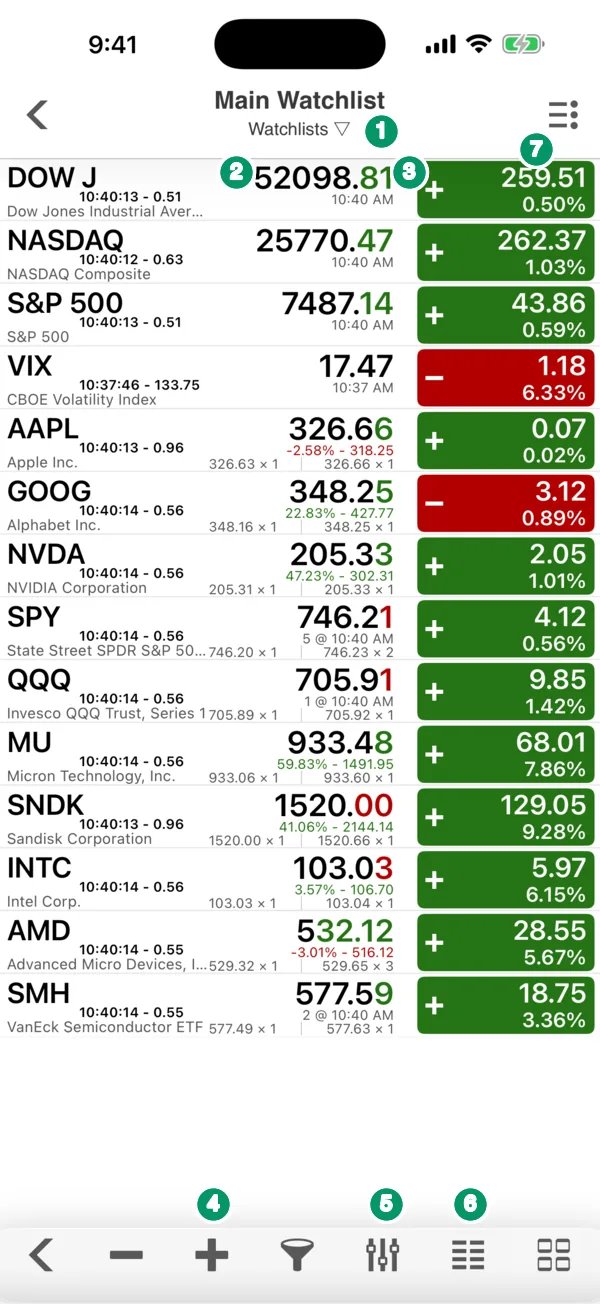
Open a list from the side menu (your first list is listed by name) or from All Watchlists. Each row shows:
- The symbol and, under it, the company or index name.
- The last price in large type, with the time of the last update under it.
- A green or red change box: the point change and the percent change since the previous close. A + or − sign repeats the direction for color-blind readers.
- For stocks, small figures beside the price: the bid and ask with their sizes, the analysts' one-year price target with its distance from the price (NVDA's 47.23% · 302.31 in the picture), and, outside regular hours, the pre-market or after-hours price.
The title area works as a switcher: tap the small Watchlists ▽ label under the list name to jump to another list without going back.
Create a watchlist
- Open the side menu and tap All Watchlists.
- Open the ≡ Actions menu and tap Add Watchlist.
- Type a name in the New Watchlist Name box and confirm.
Names must be unique. An empty name or one that is already used is refused with a message, so you cannot end up with two lists called "Tech".
Each list in All Watchlists shows how many stocks it holds. The row [ALL WATCHLIST] at the end combines every list into one, which is handy for scanning everything you follow at once.
Add and remove symbols
To add a symbol, open the list and tap + in the bottom toolbar. The Add Symbol screen
opens with a symbol lookup box: type a ticker (AAPL) or part of a name (apple) and pick
from the suggestions. Stocks, ETFs, indices, futures, currencies and crypto can all go on the
same list. You can also add the symbol you are looking at from its quote screen: open the ≡
Actions menu there and tap Add to Watchlist.
To remove symbols, tap the − button to switch to edit mode, then delete rows. The ≡ Actions menu also has Edit Symbols for the same thing and Remove All to empty the list in one step.
Reorder, rename and delete
- Reorder symbols. Press and drag a row. The custom order stays until you choose a sort; pick No Sort to get it back.
- Rename a list. Open the list, then ≡ Actions › Change Watchlist Name.
- Reorder or delete lists. In All Watchlists, tap ≡ Actions › Edit Watchlists. Deleting asks you to confirm. Your first list cannot be deleted or moved, and neither can the combined [ALL WATCHLIST] row. Reordering lists is a plan feature.
Free limits
| Limit | Free | With a plan |
|---|---|---|
| Watchlists | 3 | Unlimited |
| Symbols per watchlist | 80 | Unlimited |
| Home Stocks on the Home screen | 5 | 5 |
If you hit a limit, the app offers to upgrade. Free users who had more lists in the past still see them in All Watchlists, but lists after the third open the upgrade prompt.
More from the Actions menu
A list's ≡ Actions menu does more than editing. Among its items:
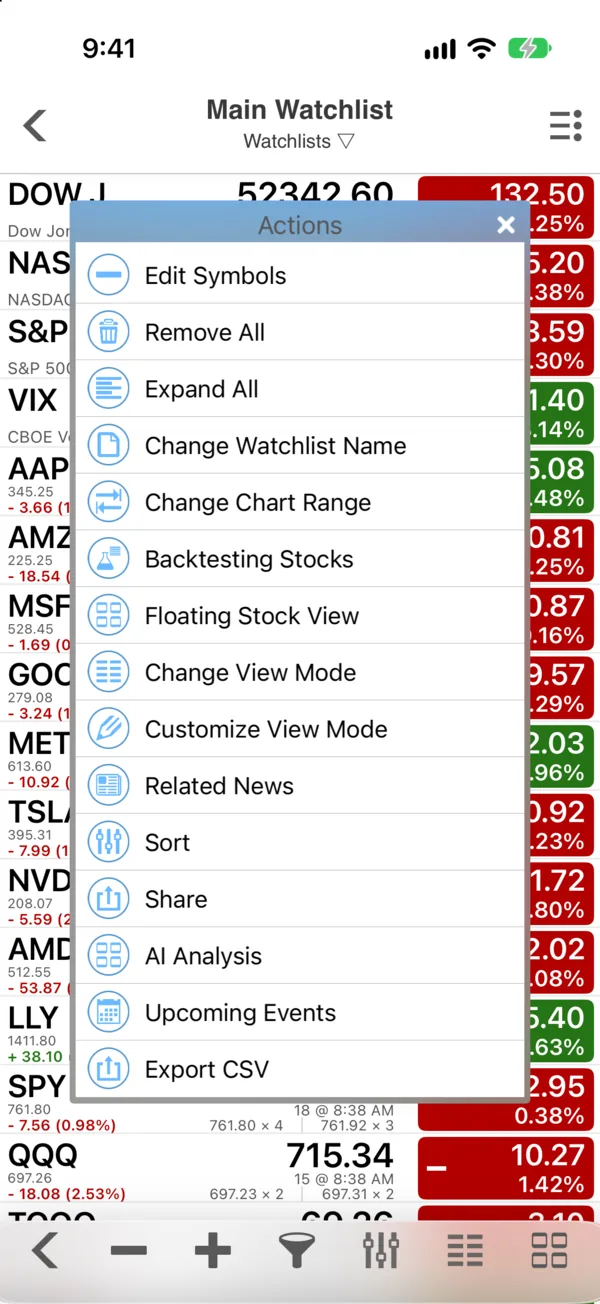
- Related News for every symbol on the list.
- Upcoming Events — the earnings and ex-dividend dates coming up for the list.
- AI Analysis of the whole list (sign-in required).
- Backtesting Stocks — run a trading strategy over every symbol on the list.
- Floating Stock View — a small floating quote panel that stays on screen as you move around the app.
- Share and Export CSV to send the list elsewhere.
Frequently asked questions
How many stocks can I put in a watchlist?
Up to 80 per list in the free version, and three lists. A plan removes both limits.
Do my watchlists sync to my other devices?
Yes, once you sign in. Lists sync through your Finabase account to your other iPhones and iPads and to finabase.io. Signed out, they live only on this device.
Can I put crypto or currencies in a watchlist?
Yes. Search for the coin or currency pair in the symbol lookup and add it like a stock.
Why can't I delete my first watchlist?
The first list is the app's main list, which the Home screen and several features use by default, so it can be renamed and emptied but not removed.
Summary
Create lists from All Watchlists, add symbols with + and the symbol lookup, remove them with −, and drag to reorder. Free accounts get three lists of 80 symbols; sign in to keep them in sync everywhere. To change how a list is displayed, read Watchlist view modes, sorting and filters in Stock Master.