
Mobile app · Charts
Add indicators and candlestick patterns to Stock Master charts
Add any of 30 indicators, 13 overlays and 61 candlestick patterns to a Stock Master chart, change their settings and colors, and save the layout.
On this page
A chart study turns a price series into something easier to read: a moving average smooths it, an oscillator measures its momentum, a pattern scan marks the candles that match a classic shape. Stock Master computes its studies with TA-Lib, the open-source library used by many trading platforms, and draws them on the phone in real time.
This guide shows how to add, adjust and remove studies, explains the difference between the three kinds, and lists everything available, with links to the library page for each.
Overlays, indicators and patterns
- Overlays share the price scale, so they are drawn over the candles: moving averages, Bollinger Bands, Parabolic SAR, VWAP and so on.
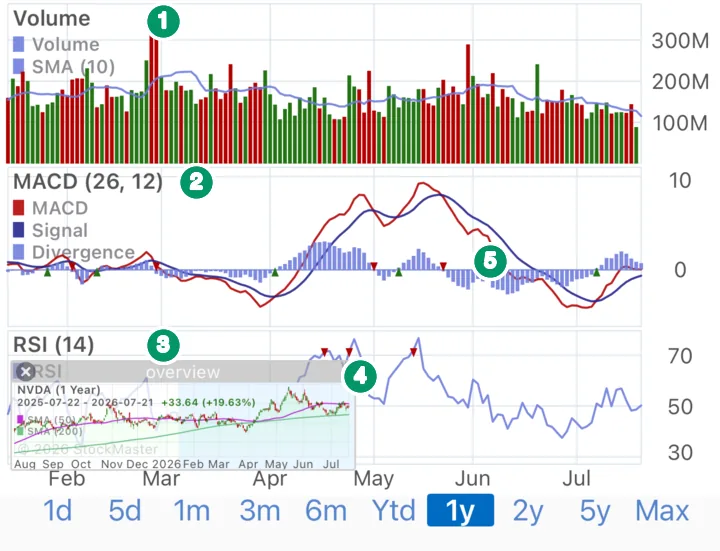
- Indicators have their own scale — RSI runs from 0 to 100, MACD around zero — so each gets a pane under the price, with its name and settings in the pane's legend, as in the picture.
- Candlestick patterns don't draw a line. When a pattern appears, the matching candle is marked.
Small green ▲ and red ▼ markers on a study (5) flag crossovers, for example the MACD line crossing its signal line. Settings › Show Crossovers on Price Chart controls whether crossovers are also marked on the price pane.
Add a study
- Open a full-screen chart and tap the gear (or ≡ › Chart Settings).
- Open the ≡ Actions menu and tap Add Indicator.
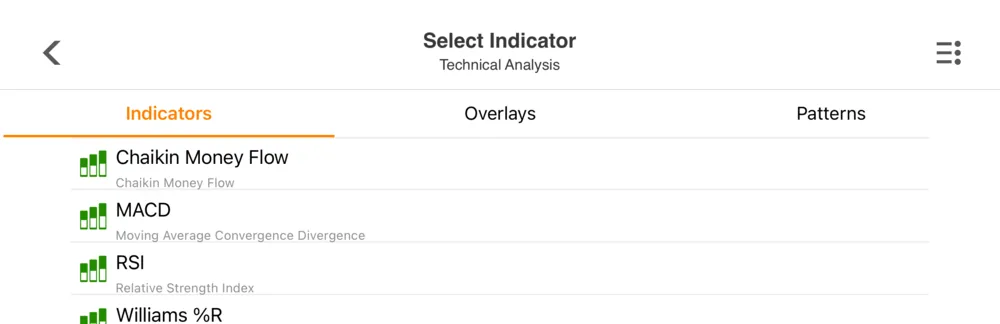
- On Select Indicator, pick a tab — Indicators, Overlays or Patterns — and tap the study.
- Go back to the chart. The study is drawn with its default settings.
The study now appears in the Overlays, Indicators or Candlesticks list in Chart Settings.
Change or remove a study
In Chart Settings, tap a study to edit it: the period (14 for RSI, 20 for a Bollinger Band), any extra parameters such as the number of standard deviations, and its line colors. Use Edit Indicators to delete studies or drag them into a different order; the order of the indicator list is the order of the panes. Reset to Default restores the original layout for that range.
A good habit: keep two or three studies that measure different things — one trend, one momentum, plus volume — rather than five oscillators that all say the same thing. The RSI guide explains why indicators of the same family agree.
Save and reuse a layout
Stock Master keeps settings per range, so your one-day chart and your five-year chart can show different studies. To reuse a layout:
- In Chart Settings, give the setup a Name. It becomes a User Chart Setting.
- On any chart, ≡ › Apply User Chart loads it.
- Apply to System Chart makes it the default for that range everywhere.
- Manage Chart Settings (side menu › My Stuff) lists all system and user settings.
Everything you can add
Overlays (13): VWAP, ZigZag, Pivot Point, Bollinger Bands, Parabolic SAR, SMA, EMA, KAMA, MAMA, WMA, TEMA, TRIMA and T3.
Indicators (30): Chaikin Money Flow, MACD, RSI, Williams %R, MFI, Stochastic, Fast Stochastic, CCI, Chaikin Oscillator (ADOSC), ADX, ADXR, APO, Aroon, Aroon Oscillator, ATR, Beta, CMO, Correlation, DEMA, DX, Momentum, NATR, OBV, ROC, ROCP, ROCR, Stochastic RSI, TRIX, TSF and Ultimate Oscillator.
Candlestick patterns (61): every TA-Lib pattern, from the doji and hammer to the engulfing, morning star and three white soldiers. Each has its own page in the candlestick pattern library.
Where else studies are used
- The quote screen's gauges count how many overlays, indicators and patterns read buy, neutral or sell (The Stock Master quote screen, field by field).
- Indicator alerts notify you when a study turns bullish or bearish (Set price, percent and indicator alerts in Stock Master).
- The scanner finds symbols where a study or pattern just fired (Scan the market for signals with the Stock Master scanner).
Frequently asked questions
How many indicators can I add to one chart?
There is no fixed cap, but each indicator takes its own pane, so beyond three or four the panes get short on a phone. Overlays and patterns don't add panes.
How do I change RSI from 14 to another period?
Open Chart Settings, tap RSI in the Indicators list, change the period and go back.
Why did my indicators disappear when I changed the range?
Each range has its own settings. Add the study on that range too, or use Apply User Chart to load a saved layout.
Does Stock Master recognize candlestick patterns automatically?
Yes. Add a pattern from the Patterns tab and every matching candle in the range is marked.
Summary
Add overlays, indicators and candlestick patterns from Chart Settings › Add Indicator, tune each one by tapping it, and save the result as a named chart setting to reuse on any symbol. The 104 studies are the TA-Lib set, and every one links to a full guide in this library.