
Mobile app · Getting started
Customize the Stock Master Home screen and favorite actions
Choose which market widgets Stock Master shows on Home, pick your five Home Stocks, and arrange the favorite-action shortcuts you open most.
On this page
The Home screen is the first thing Stock Master shows, so it is worth five minutes to make it yours. It has two parts: Home widgets, live market tiles across the top, and Favorite Actions, a list of shortcuts to the screens you open most. Both can be switched on and off, reordered and reset.
This guide explains each widget, how to choose your Home Stocks, how to change the shortcut list, and how to make the app open somewhere other than Home.
The Home widgets
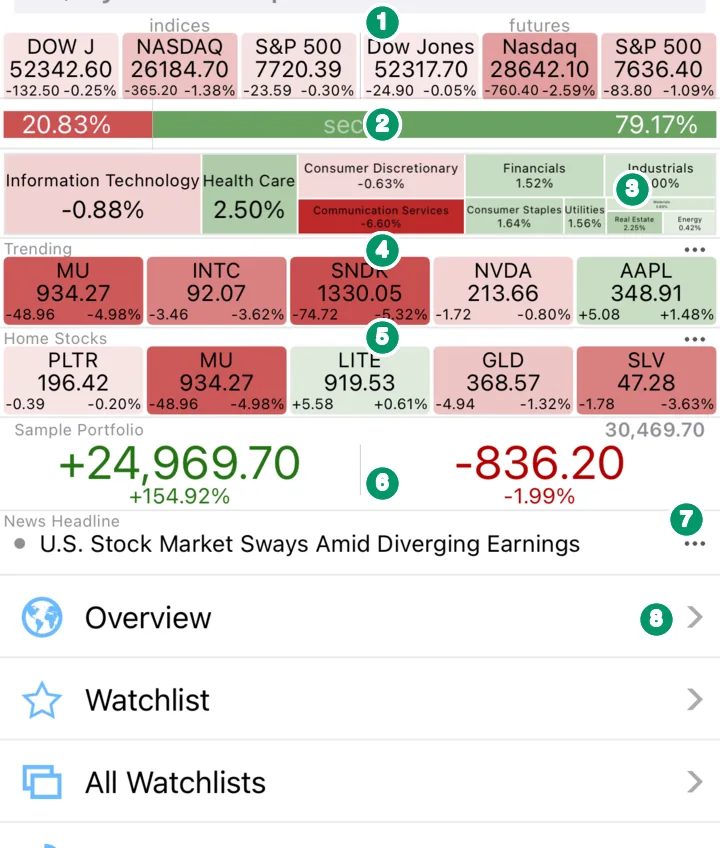
These are the widgets switched on when you install the app, in the order shown above:
- Stock Index / Future. The Dow, Nasdaq and S&P 500 indices on the left and their index futures on the right. Futures trade nearly around the clock, so they show where the market is leaning before the 9:30 a.m. ET open. Each tile shows the level, the point change and the percent change, shaded green or red by direction.
- Sector Overview. A single bar that splits the market into the share of stocks up today (green, right) and down (red, left).
- Sectors. A small map of the eleven market sectors, each tile sized by weight and colored by today's move. Tap it to open the full market map.
- Trending Stocks. Five of the symbols drawing the most attention right now.
- Home Stocks. Five symbols of your choice (see below).
- First Portfolio. The total gain and today's change of your first portfolio. The free sample portfolio appears here until you create your own.
- News Headline. The top market headline; tap it to read the article.
- Favorite Actions start below the widgets.
The tiles shade from pale to deep color as the move gets larger, so a quick glance tells you which names are moving most, not only which way.
Widgets you can add
Besides the defaults, you can switch on Watchlist (your main watchlist as tiles), Earnings Stocks (companies reporting soon), All Portfolios, and the Second or Third Portfolio. Twelve widgets are available in all.
Change the widgets
- On Home, scroll to the bottom of the Favorite Actions list and tap Customize Home, or open the ≡ Actions menu at the top right.
- The customize screen has three sections: Favorite Actions, Home Widgets and Home Widgets Settings.
- Under Home Widgets, switch widgets on or off and drag them into the order you want.
- Under Home Widgets Settings you can, for example, show the index/futures strip in three columns, turn the quote tiles into a Quote Heatmap, and edit your Home Stocks.
The ••• button at the right of a widget's title (Trending, Home Stocks, News Headline) opens that widget's own options.
Choose your Home Stocks
Home Stocks is a short row for the symbols you check most — say, the stocks you own plus a benchmark. It holds up to five symbols. Edit it from Home Widgets Settings › Home Stocks: add symbols with the symbol lookup, remove them, and drag to reorder. If you try to add a sixth, the app tells you the maximum number of Home Stocks has been reached.
Home Stocks is separate from your watchlists. Removing a symbol here does not touch any list.
Arrange your favorite actions
Favorite Actions are the shortcuts under the widgets — out of the box: Overview, Watchlist, All Watchlists, Portfolio, Trend Score, Earnings Calendar, Performers, Sectors and more. To change them:
- Add Favorite Action (from the ≡ menu) adds any screen in the app to the list.
- Edit Favorite Actions lets you delete shortcuts and drag them into a new order. The Arrange Home button at the end of the list does the same.
- Reset to Default restores the original list.
The same list also appears in the shortcut panel that the grid icon at the bottom right of every screen opens, so the screens you put here are one tap away anywhere in the app.
Open the app somewhere else
If you always start in the same place — your watchlist, say — go to Settings › App Startup View and pick that screen. The app then opens there, and Home stays one tap away in the side menu.
Frequently asked questions
How do I get the Home screen back to how it was?
Open the ≡ Actions menu on Home and tap Reset to Default. That restores the original favorite actions; switch the widgets back on under Home Widgets if you turned any off.
Can I put my whole watchlist on Home?
Yes. Switch on the Watchlist widget. For a longer list, add Watchlist or All Watchlists as a favorite action, or make your watchlist the App Startup View.
Why does the portfolio widget show a "Sample Portfolio"?
The app ships with a sample portfolio so the widget is not empty. Create your own portfolio and it takes the first slot; you can also delete the sample.
Are these the same as the iPhone home-screen widgets?
No. These widgets live inside the app. Stock Master also offers iOS home-screen widgets for a stock, a watchlist, a market map, comparisons and portfolios, which you add from the iPhone home screen like any other widget.
Summary
Home is built from live widgets on top and favorite shortcuts below. Use Customize Home to choose and order the widgets, keep up to five symbols in Home Stocks, trim the shortcut list to the screens you really use, and set App Startup View if you would rather open somewhere else.