
Mobile app · Getting started
Stock Master settings: dark mode, colors, language and more
Find your way around Stock Master Settings: dark mode, up/down colors, language, passcode and Face ID, startup screen, notifications, chart and portfolio options.
On this page
Stock Master has more settings than most apps, because people use it in very different ways — a long-term investor checking a portfolio once a day, a trader watching intraday charts, someone in London pricing shares in pence. You never need to touch most of them. This guide explains how the Settings screen is organized and the dozen settings worth knowing first: dark mode, colors, language, passcode, the startup screen, notifications, and the chart and portfolio options that change what you see.
The Settings screen
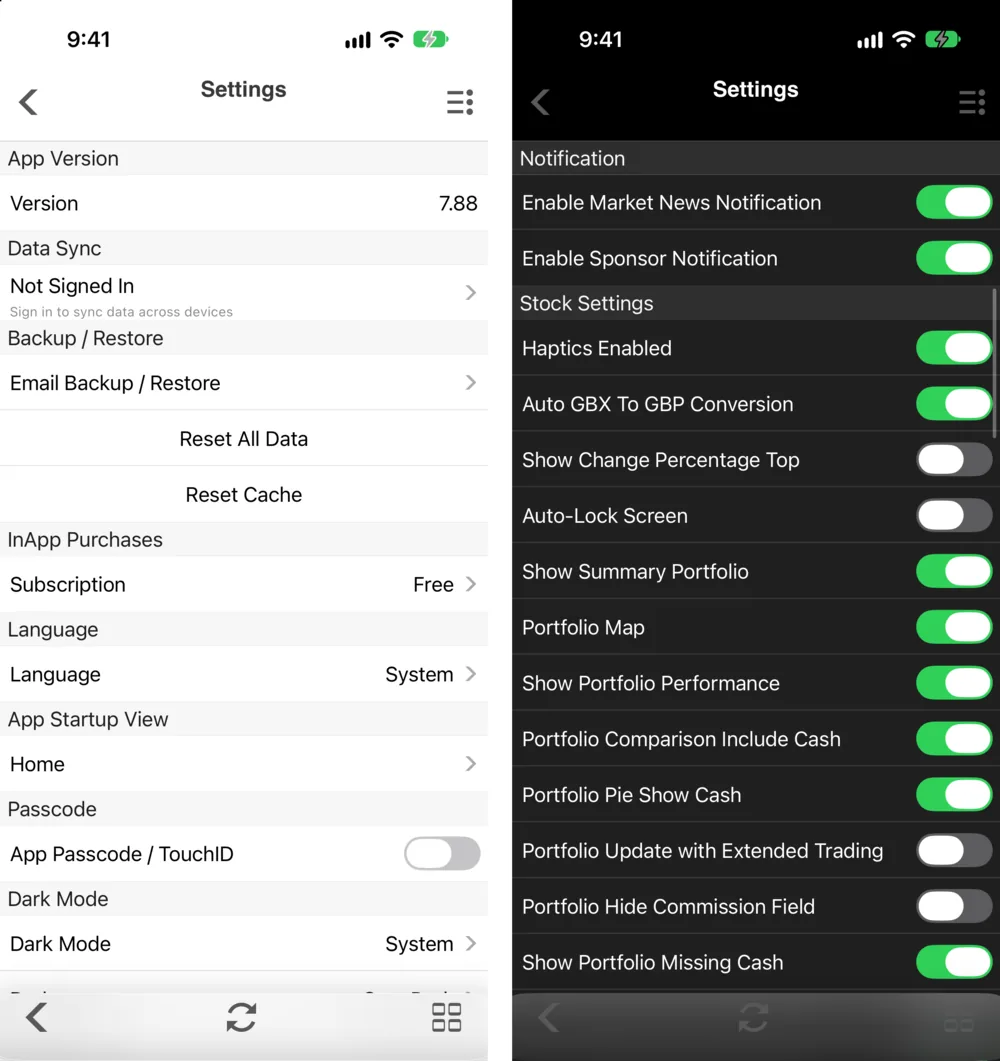
Settings is a long list of sections, top to bottom:
| Section | What it holds |
|---|---|
| App Version | The version you are running (7.88 here). |
| Data Sync | Your account, or Not Signed In — tap to sign in (Sign in, sync across devices and back up Stock Master). |
| Backup / Restore | Email Backup / Restore, Reset All Data, Reset Cache. |
| InApp Purchases | Subscription and your current plan (Stock Master plans: Essentials, Plus and Premium compared). |
| Language | System or one of eleven languages. |
| App Startup View | The screen the app opens on — Home by default. |
| Passcode | App Passcode / TouchID (or Face ID). |
| Dark Mode | Dark Mode and Darkness. |
| Notification | Enable Market News Notification, Enable Sponsor Notification. |
| Stock Settings | Display, color and portfolio-calculation switches. |
| Chart Range Preference | Default chart ranges for watchlists, screen and scan results, commodities and currencies. |
| Chart Settings | How the full-screen chart opens and behaves. |
| Portfolio Chart | Which lines the portfolio chart shows: value, market value, costs, cash. |
| Decimal Preference | Stock Quote Decimals and Currency Decimals. |
| Accessibility | High Contrast Up / Down Color, Chart Overview Location, Menu Background. |
| Miscellaneous | FAQs / Disclaimer, Privacy Options (where it applies), Feature Request. |
Dark mode
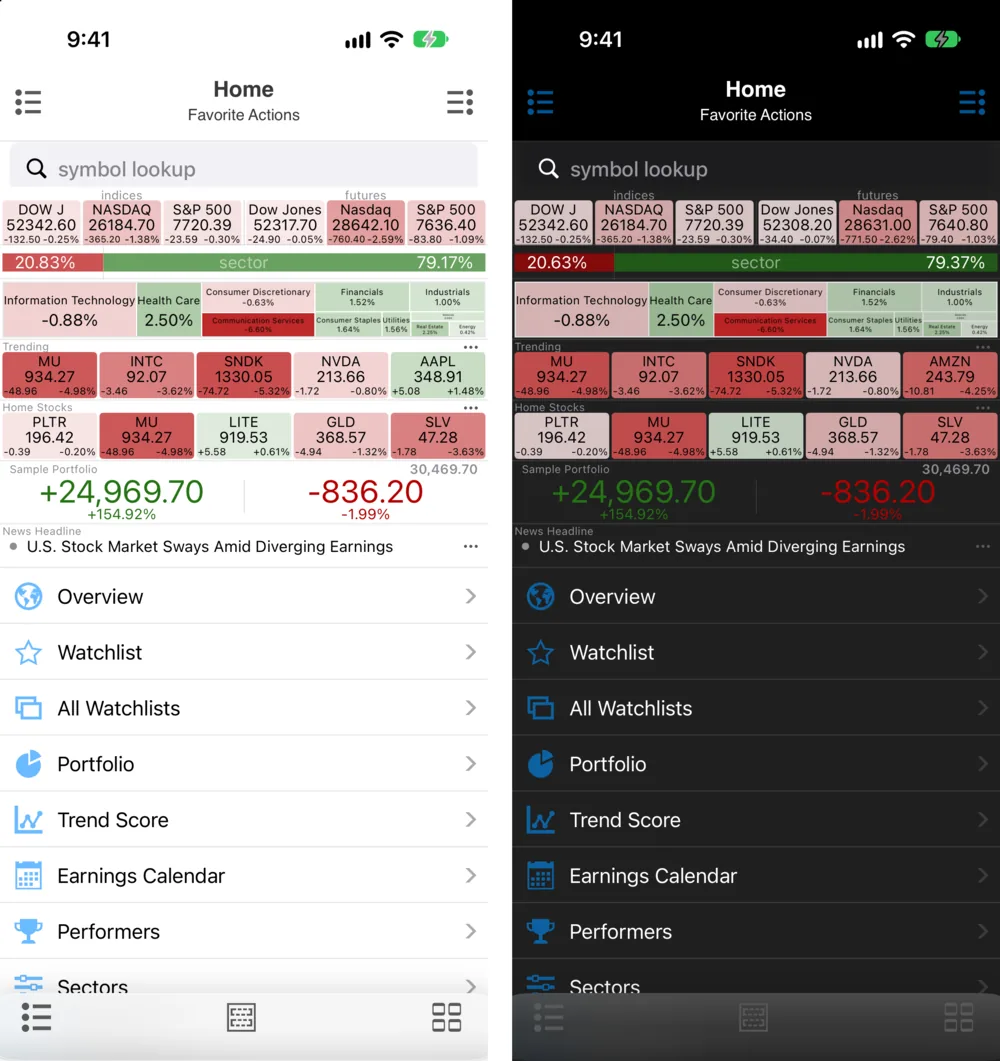
Settings › Dark Mode › Dark Mode has three choices: System follows the iPhone's appearance (and switches at sunset if you set the iPhone to Automatic), Light and Dark override it. Darkness picks the shade: Pure Dark (true black, easiest on OLED screens at night) or Gray Dark. Dark Mode Light Up / Down Color uses lighter greens and reds on dark backgrounds, which some people find easier to read.
Colors and accessibility
- Revert Stock Up/Down Color swaps the meaning of green and red — red for up, green for down — as is customary in mainland China and some other Asian markets.
- High Contrast Up / Down Color (Accessibility) uses stronger colors for users with red-green color blindness. The change boxes also always show + or −, so direction never depends on color alone.
- Colorized Price Change adds color to price changes beyond the change box.
- Menu Background gives the side menu a gray or colored background.
Security and startup
App Passcode / TouchID asks for Face ID, Touch ID or a passcode whenever the app opens — useful if you track real portfolios. App Startup View makes the app open on any screen, such as your watchlist.
Settings worth a look
A few switches in Stock Settings and Chart Settings change everyday behavior:
- Show Change Percentage Top — put the percentage change first in the change boxes.
- Haptics Enabled — small vibrations on taps and updates.
- Auto GBX To GBP Conversion — London prices quoted in pence (GBX) are shown in pounds.
- Portfolio Update with Extended Trading — value portfolios with pre-market and after-hours prices. Off by default.
- Show Crossovers on Price Chart, Show Bid/Ask on Price Chart — chart markers.
- Rotate to Show Fullscreen Chart, Click to Show Fullscreen Chart, Realtime Chart Update — how the full-screen chart opens and updates (Interactive charts in Stock Master: ranges, types and zoom).
- Watchlist Sorting Persistent — keep a list's sort order (Watchlist view modes, sorting and filters in Stock Master).
Reset and cache
Reset Cache clears stored quotes and charts and reloads them — the first thing to try if something looks stale. Reset All Data erases the app's data on the phone: watchlists, portfolios and settings. If you are signed in, your synced data comes back when you sign in again; if not, it is gone. Make a backup first (Sign in, sync across devices and back up Stock Master).
Frequently asked questions
How do I turn on dark mode in Stock Master?
Go to Settings › Dark Mode and choose Dark, or System to follow the iPhone. Pick Pure Dark or Gray Dark under Darkness.
How do I make red mean up?
Turn on Revert Stock Up/Down Color in Settings › Stock Settings.
Can I lock the app with Face ID?
Yes. Turn on App Passcode / TouchID in Settings. On iPhones with Face ID, it uses Face ID.
How do I change the app's language?
Settings › Language. Choose System to follow the iPhone, or one of eleven languages.
Summary
Settings runs from your account and backup at the top to display, chart, portfolio and accessibility options below. Set dark mode and colors first, add a passcode if you track real money, choose the startup screen, and use Reset Cache before anything more drastic.