
Mobile app · Tools
Compare stocks side by side in Stock Master
Build comparison groups in Stock Master to chart several stocks or indices on one percent-change chart, from one day to the maximum range.
On this page
Is Apple doing well, or is the whole market up? A single chart can't tell you. A comparison can: put several symbols on one chart, start them all at zero, and the lines show which one gained most over the same period. Stock Master's Stock Comparison keeps groups of symbols — the major indices, a sector's leaders, your own holdings against a benchmark — each drawn as percent-change lines over any range.
This guide shows how to read a comparison, build your own groups, and use comparisons elsewhere in the app.
The comparison screen
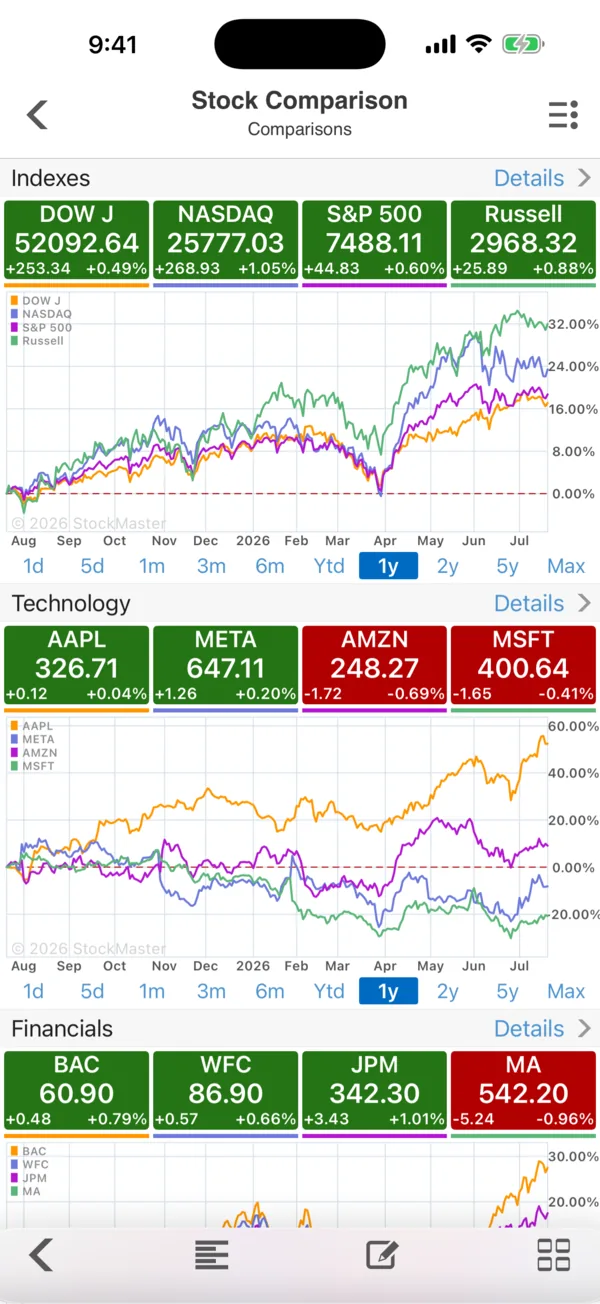
Open the side menu and tap Stock Comparison. The screen is a stack of groups. Each has:
- A title — Indexes, Technology, Financials — and a Details link.
- Tiles for each symbol with its price and today's change, colored green or red. The tile's color matches its line in the chart.
- A percent-change chart with one line per symbol, and range buttons from 1d to Max.
In the picture's one-year Indexes chart, the four lines end several percentage points apart, which shows which part of the market led. That kind of gap is invisible when you look at each index on its own.
Reading a percent-change chart
Every line starts at 0% on the first day of the range, so the chart answers "how much did each gain since then?", whatever the share prices. A $50 stock and a $500 stock that both rose 10% end at the same height.
Two cautions:
- The start date matters. A stock that fell sharply just before the range began will look strong, because it starts from a low point. Check a longer range before concluding anything.
- Price only. The lines show price change. Dividends are not added, so high-yield stocks look worse than their total return over long ranges.
Build your own groups
- On Stock Comparison, open the ≡ Actions menu and tap Edit Stock Comparison.
- Add a group, name it, and add symbols with the symbol lookup. Four or five symbols per group keeps the chart readable.
- Reorder or delete groups the same way.
Useful groups to start with:
- Holding vs benchmark — each stock you own beside SPY or QQQ.
- Peers — NVDA, AMD, AVGO, INTC; or JPM, BAC, WFC, C.
- Asset classes — SPY (stocks), TLT (long Treasuries), GLD (gold) and bitcoin.
- Sector ETFs — XLK, XLF, XLE, XLV and friends, to see sector rotation.
Other places to compare
- Quick Comparison on a quote screen shows the stock beside an index for today, year to date and one year, and the toolbar's comparison button toggles it.
- The Overview tab of a quote includes a Stock Comparison section and Peers.
- In Chart Settings, the Comparison option overlays a second symbol on any chart, and the Ordinate Axis can be set to Percentage (Interactive charts in Stock Master: ranges, types and zoom).
- The Comparison iPhone home-screen widget shows indexes, futures and your own comparisons.
Frequently asked questions
How do I compare two stocks in Stock Master?
Add both to a group in Stock Comparison (≡ › Edit Stock Comparison), or open one stock's chart and add the other with Comparison in Chart Settings.
Why do the lines all start at zero?
The chart shows percent change from the first day of the range, so stocks with very different prices can be compared fairly.
Does the comparison include dividends?
No. It compares price change only. Over long periods, dividend-paying stocks' total returns are higher than their lines suggest.
Can I compare a stock with bitcoin or gold?
Yes. Any symbol the app quotes — stocks, ETFs, indices, futures, currencies or crypto — can go in a comparison group.
Summary
Stock Comparison puts groups of symbols on percent-change charts that start at zero, so you can see at a glance which led over any range. Build groups for your holdings, their peers and benchmarks, and remember the chart reflects price only and depends on its start date.