
Web app · Research tools
Use the Finabase stock screener and screener builder on the web
Run a ready-made screen or build your own on finabase.io from scope, ranking, fundamentals, indicator signals and candlestick patterns, then share or save it.
On this page
A stock screener turns a description — "large companies yielding more than 4%", "stocks under $5 trading over a million shares" — into a list. The Finabase screener runs over every US-listed stock (and a dozen foreign exchanges) against the latest quotes and the daily technical scan, and re-runs each screen every minute. You can start from a ready-made screen, change it in the builder, share the link, and, once signed in, save it to your account and the Stock Master app.
This guide covers the ready-made screens, every control in the builder, the result views, and how to use screens without fooling yourself.
Ready-made screens
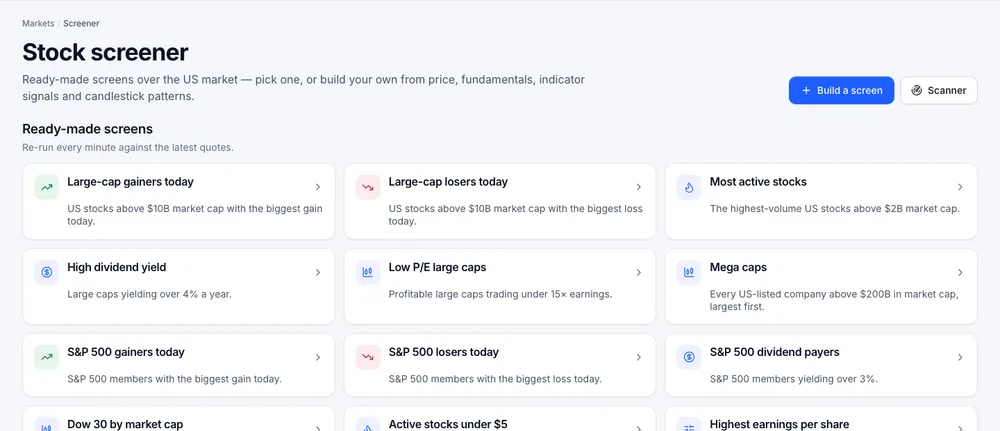
The screener page lists Ready-made screens: Large-cap gainers today, Large-cap losers today, Most active stocks, High dividend yield, Low P/E large caps, Mega caps, S&P 500 gainers today, S&P 500 losers today, S&P 500 dividend payers, Dow 30 by market cap, Active stocks under $5 and Highest earnings per share. Each card says what it filters — "US stocks above $10B market cap with the biggest gain today". Open one for its results, switch between them with the tabs, or press Customize in the builder to use it as a starting point.
Signed in, Your screens appears above the ready-made ones.
The screener builder
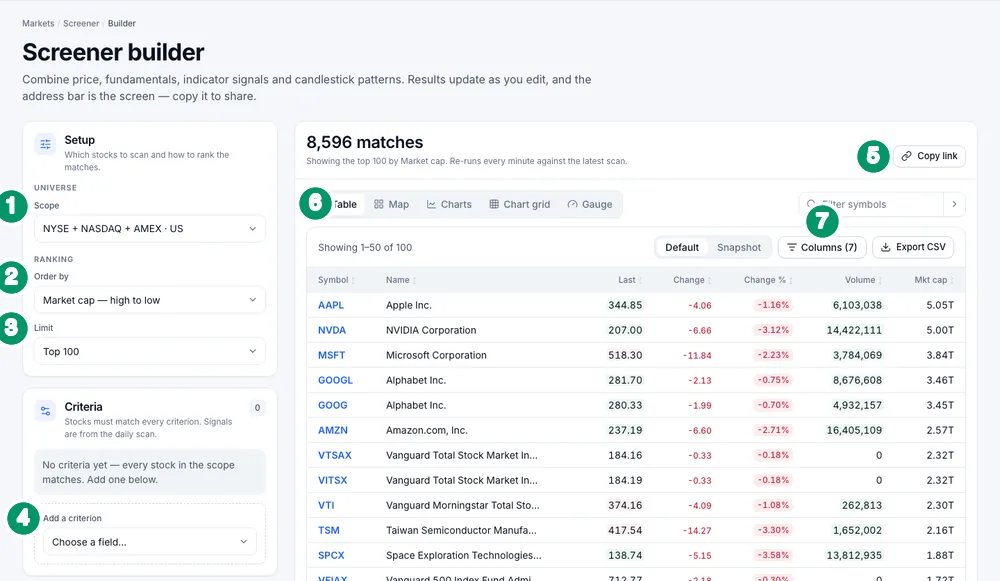
Click Build a screen. The left column is the screen; the right is the result, which updates as you edit.
- Scope — which stocks to search: the default NYSE + NASDAQ + AMEX, an index (S&P 100, 400, 500 or 600, Dow 30), one US exchange, or a foreign market such as TSX, LSE, ASX, Hong Kong, Taiwan, Singapore or India's NSE — 22 scopes in all.
- Order by — how matches are ranked, for example Market cap — high to low (the default), change %, volume, P/E or dividend yield, high to low or low to high.
- Limit — the top 10, 20, 50, 100 (default), 150 or 200 matches.
- Add a criterion — choose a field. Range fields take an operator — Between, At
least or At most — and values such as
10B,4or0.5. Signal fields take bullish, bearish or both on the same bar. - Copy link — the address bar always describes the screen, so the link reproduces it for anyone.
- Views — Table, Map (a heatmap of the matches), Charts, Chart grid and Gauge; Filter symbols narrows the list.
- Columns picks table columns; Default and Snapshot switch column sets; Export CSV downloads the result.
The criteria
| Group | Fields |
|---|---|
| Fundamentals & price | Price, Change, Change %, Volume, Average Volume, Market Cap, P/E Ratio, EPS, Price/Sales, Short Ratio, Dividend/Share, Dividend Yield, Return YTD, 1Y, 2Y |
| Indicator signals | Crossovers and signals from the daily scan — moving-average crosses, MACD, RSI, Stochastics, Bollinger Bands, Parabolic SAR and more |
| Candlestick patterns | The bullish or bearish candlestick patterns the scan detected on the latest daily bar |
Signals come from the daily scan, so a signal criterion means "fired on the latest completed daily bar". A field marked "(no data)" has nothing for the current scope.
For what the fields mean, see market cap, P/E ratio and dividend yield.
Saving a screen
At the bottom of the builder, Save this screen takes a Name and Save. Signed out it offers Sign in instead. Saved screens live under Your screens and in the Stock Master app's Stock Screener. Open a saved screen to Save changes, save it as a new screen, rename or delete it.
Saved screens count toward your plan's lists: four on Free, 30 on Essentials, 100 on Plus, unlimited on Premium. At the limit the page says so and links to the plans.
Example screens
Educational outlines, not recommendations:
- Large dividend payers at modest valuations — Scope S&P 500; Market Cap at least 10B; Dividend Yield at least 3; P/E Ratio at most 18; order by dividend yield, high to low.
- Liquid momentum — NYSE + NASDAQ + AMEX; Return 1Y at least 30; Average Volume at least 1M; order by Return 1Y.
- Fresh trend changes — S&P 500; a bullish moving-average cross signal; order by change %.
A screen is a starting list. Check each name's chart, news and financials (How to research a stock: a step-by-step guide for beginners); a very low P/E is often low for a reason, and fundamentals only update after each quarterly report.
Frequently asked questions
Can I describe a screen in plain English on the web?
Not in the builder today; you choose fields from the list. The AI Chat can answer questions such as "large-cap tech stocks with dividends" (Ask Finabase AI: research stocks with the AI chat on the web).
How often are results updated?
Every screen re-runs against the latest quotes every minute. Signal criteria use the latest daily scan.
Can I share a screen without an account?
Yes. Copy link copies the address, which contains the whole screen.
What is the difference between the screener and the scanner?
The screener filters by fields you choose. The scanner lists every signal the daily scan found and the stocks behind each one (Find today's technical signals with the Finabase scanner).
Summary
Start from a ready-made screen or Build a screen, pick a scope, an order and a limit, add criteria, and read the result as a table, map or charts. Copy the link to share it, or sign in and save it to your account. On iPhone, see Find stocks with the Stock Master stock screener.