
Web app · Getting started
Sign in to Finabase on the web and manage your account
Sign in to finabase.io with Google, Apple or email, edit your public profile, see your plan, and sign out other browsers from the security page.
On this page
A Finabase account is what turns the website from a research tool into your own workspace. It holds your watchlists, portfolios, alerts, saved screens, chart templates, paper-trading account and AI chat history, and it is the same account you use in the Stock Master app on iPhone and Android. Anything you change on one shows up on the other.
This guide covers signing in or creating an account, what the Your account page shows, how to see and end your signed-in sessions, and where account deletion lives.
Signing in or creating an account
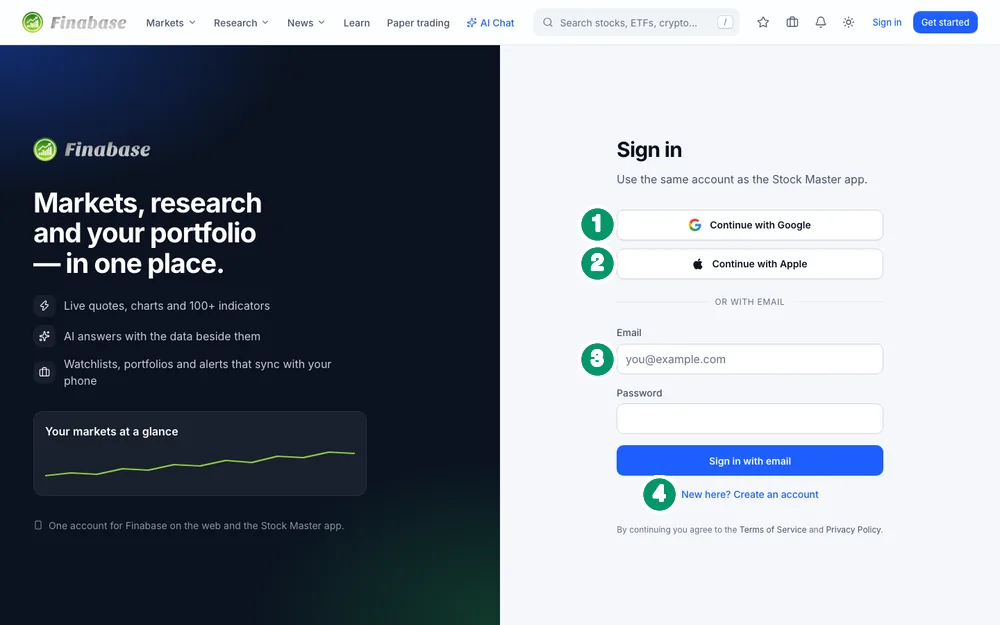
Click Sign in in the header, or open any page that needs an account, such as Watchlists. The sign-in page offers:
- Continue with Google — a Google pop-up asks which Google account to use.
- Continue with Apple — Sign in with Apple, including Apple's "Hide My Email" relay addresses.
- Email and Password, then Sign in with email. Passwords need at least six characters.
- New here? Create an account switches the form to sign-up, which adds a Name field and a Create account button. The header's Get started button opens the page in this mode.
When you came from a page that needed an account, Finabase takes you back to that page after signing in; otherwise you land on Your account.
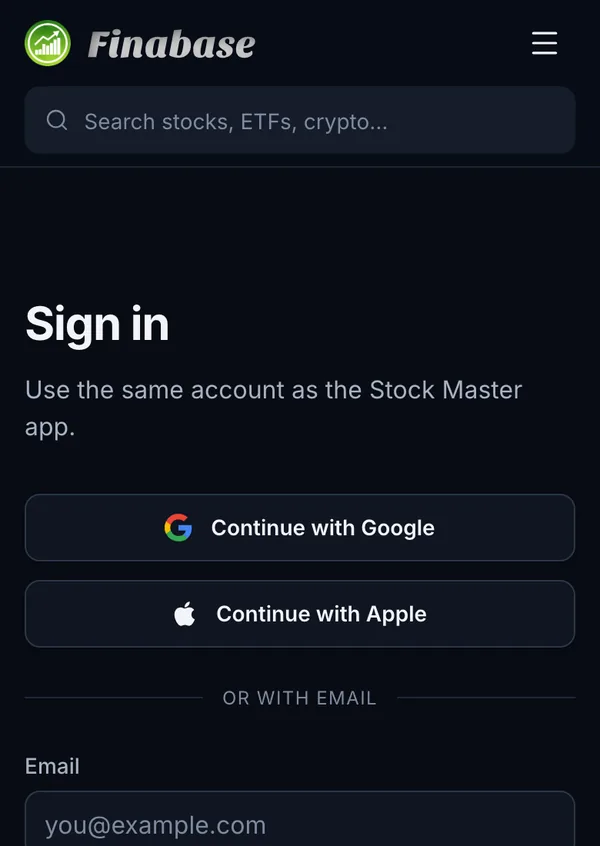
The page has no "forgot password" link today. If you set up an email password in the Stock Master app, reset it there, or use the Feedback page to ask for help.
Your account page
Once you are signed in, open the avatar menu and choose Your profile. The Your account page has four parts:
- Public profile — Display name (required), Biography, Location, Website and Photo URL, saved with Save profile. These appear next to your posts in a symbol's Discussion tab. Your email address is never shown publicly.
- Sign-in details — your user id, email and name. The id is the same one the Stock Master app uses.
- Plan — the current plan, where it was bought (the web through Stripe, the App Store or Google Play), the date it is paid through (US Eastern time), and whether the Premium Data add-on is active. Plans & billing opens the pricing page.
- Session — a reminder that signing out here keeps your phone signed in, a link to Security & signed-in devices, and Sign out.
Quick links at the top go straight to Watchlists, Portfolios, Alerts, Paper trading and AI Chat.
Security and signed-in devices
The security page lists every browser session on your account: the device, its platform, when it was last active, when it signed in, and the method used (Google, Apple or email and password). Your current browser is marked This browser.
- Sign out this device ends one session; that browser loses access within about a minute.
- Sign out everywhere else ends every session except the one you are using — the right move if you signed in on a shared or lost computer.
Sessions end on their own after 14 days without use, or after 90 days however often you use them, and you sign in again. Signing out on the web does not sign out the Stock Master app.
Deleting your account
The account page links to Delete your account and data, the same request page as Delete my data in the site footer. Deleting your account removes your lists and history for the apps as well, so export anything you want to keep first — portfolios and transactions have Export CSV buttons (Track portfolios and trades on finabase.io).
Frequently asked questions
Why are my watchlists missing after I signed in?
Most often you signed in with a different method than in the app — Apple there, Google here. Sign out and sign back in with the method you use in Stock Master.
Do I have to create a new account for the website?
No. If you already use Stock Master, your existing account works on finabase.io.
How long do I stay signed in?
Until you sign out, or for up to 14 days without a visit and 90 days in total. Then you sign in again.
Can I change my email address?
The web account page does not change your sign-in email. Your email comes from Google, Apple or the email you registered with.
Summary
Sign in with Google, Apple or email — the same way you do in Stock Master — and the website shows your lists straight away. Your account holds your public profile and plan details, Security & signed-in devices lets you end sessions anywhere, and the deletion request is linked from the same page. The iPhone counterpart is Sign in, sync across devices and back up Stock Master.