
Web app · Charts
Interactive charts on finabase.io: ranges, chart types and controls
Use the Finabase chart on the web — ranges and minute intervals, candle and Heikin-Ashi types, volume, log scale, events, comparisons, fullscreen and keyboard controls.
On this page
The Finabase chart is the same engine on every page that shows a price: the quick chart on a symbol page, the full Chart tab, the standalone chart page, comparison sets and the backtester. It draws line, candle, OHLC, Heikin-Ashi and bar charts from one day of minute bars to the full history, with volume, corporate events, comparison overlays, more than a hundred indicators and candlestick patterns, and drawing tools.
This guide covers the controls — ranges, intervals, chart types, toolbar, navigation and keyboard. Indicators, drawings and saved templates have their own guide, Add indicators, drawings and chart templates on finabase.io.
The chart toolbar
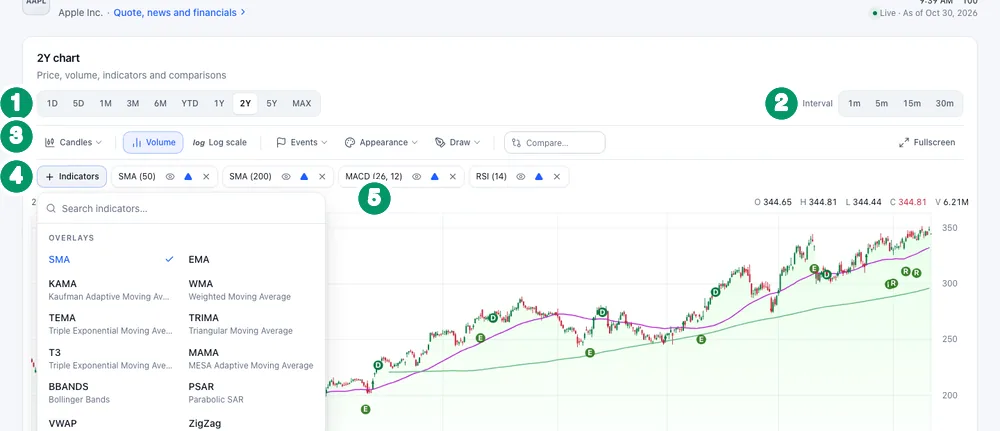
- Ranges — 1D, 5D, 1M, 3M, 6M, YTD, 1Y, 2Y, 5Y and
MAX. Short ranges use intraday bars, longer ones daily bars, and MAX monthly bars. Add
?range=6m(or1d,ytd,max…) to a chart address to open it on that range. - Interval — 1m, 5m, 15m or 30m bars for intraday detail.
- Toolbar, left to right:
- Chart type — Line, Candles, OHLC, Heikin-Ashi or Bars. See Chart types explained: line, OHLC bar, candlestick and area charts and Heikin-Ashi candles: formula, worked example and how to read them.
- Volume — the volume pane, with a volume average line.
- Log scale — equal percentage moves take equal space; use it for long ranges (Linear vs logarithmic price scale: which chart to use and why).
- Events — markers for Dividends (D), Splits, Earnings (E) and Analyst ratings (R).
- Appearance — periods per bar (combine 1–8 bars into one), crossover markers, a percentage axis, area fill and gradient, up/down area colours, the volume-average period and every colour.
- Draw — drawing tools.
- Compare… — overlay another symbol on the price.
- Fullscreen — the chart fills the screen; Esc exits.
- Indicators — add studies and candlestick patterns.
- Indicator chips — one per active study, with show/hide, crossover markers and remove.
The line above the plot gives the date and O H L C V — open, high, low, close and volume — for the bar under the cursor. The legend in the corner shows the symbol, the range's change and each study's colour.
Navigating the chart
- Mouse wheel or trackpad zooms around the cursor; drag pans. Fit appears after you zoom and restores the full range.
- Hover shows the crosshair and that bar's values; event markers explain themselves on hover.
Keyboard controls
Click the chart first so it has focus.
| Key | Action |
|---|---|
| ← / → | Move the crosshair one bar (Shift: 10) |
| Home / End | First or last bar |
| + or = | Zoom in |
| − or _ | Zoom out |
| 0 | Reset zoom |
| Delete / Backspace | Remove the selected drawing |
| Esc | Cancel a tool, deselect, or exit fullscreen |
Dark mode and phones
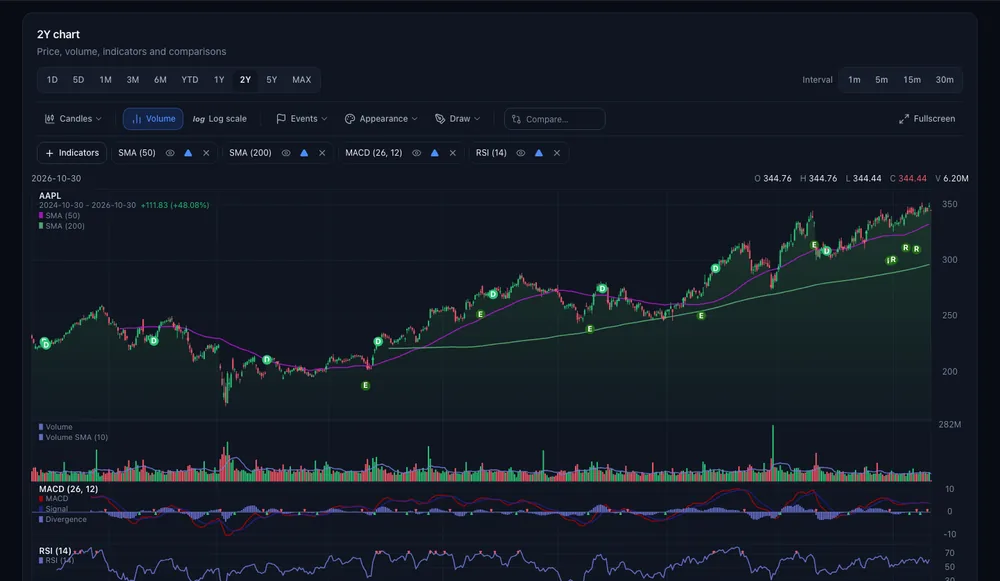
The chart follows the site theme. On a phone, the toolbar wraps onto several rows, the chart fills the width, and fullscreen turns the phone into a chart-only view — rotate it for the widest plot.
What is saved
Signed in, changes you make on a symbol page's Chart tab — chart type, volume, indicators,
appearance — are saved for that range after a moment ("Saving…", "Saved"), so 1D and 1Y can
look different. The same settings appear in the Stock Master app. The standalone /chart/<symbol>
page shows your saved settings but does not change them. Drawings are saved per symbol. Signed
out, everything still works; it is just not kept.
Frequently asked questions
Why does the chart open on two years?
Two years of daily bars show both the long trend and recent swings. The quick chart on the Summary tab opens on five days, and your last choice is remembered.
How do I see pre-market and after-hours moves?
The quote header on every symbol page and chart page shows the Extended hours price and change. For the bars themselves, look at the 1D or 5D range or a minute interval.
Can I link to a chart with my indicators?
Yes. Chart addresses accept ?range=, ?compare= and a ?studies= list, which the Learn
articles use to open charts with an indicator ready.
Is the chart free?
Yes. Every chart type, range, indicator and drawing tool is free; saving them needs an account.
Summary
Pick a range or minute interval, choose a chart type, and use the toolbar for volume, log scale, events, comparisons and fullscreen. Zoom with the wheel, pan by dragging, and step through bars with the arrow keys. Signed in, your setup is saved per range and shared with Stock Master. On iPhone, see Interactive charts in Stock Master: ranges, types and zoom.